Project developmentProgress in your accountManual delivery
Price
$400
USD · one-time full payment
Order Restaurant POS development from Fah Swe for $400 USD as a one-time project. After payment approval, follow your In Progress project in your account; Fah Swe manages development, progress updates and final handover manually. Explore the 30 labeled UI concept previews below.
Fah Swe Restaurant POS Software is a restaurant management development offer from Fah Swe, a software company in Bangladesh serving clients worldwide. The one-time project price is $400 USD. This page explains the proposed POS workflow through 30 separately documented interface concepts.
Development, progress and manual delivery
Place your development order through your Fah Swe account. Submit the required payment information using an available payment method. When payment is approved, the order starts an In Progress project in your client workspace.
Fah Swe confirms the project requirements, development scope and delivery schedule with you. The team updates project progress and handles the final review and handover manually through the existing project workspace and agreed delivery process. Follow Projects in your dashboard for progress and communication. Work is developed and delivered as a project; the interface artwork is a visual guide to the intended workflow.
What the proposed restaurant workflow covers
The visual sequence follows a single dine-in order: dashboard, Free Table 03, categories, food selection, quantity controls, order summary, waiter assignment, Kitchen Order Ticket, kitchen queue, Busy Table 03, existing order preview, computer billing, payment, receipt preview, receipt printing and table closure.
The same example is used throughout:
- Chicken Burger: 2 × ৳180 = ৳360
- Chicken Pizza: 1 × ৳450 = ৳450
- Milk Tea: 2 × ৳30 = ৳60
- Subtotal and total: ৳870
- Waiter 01 stays assigned after selection.
- Sample tax, service charge and discount are ৳0.
Understand the concept previews
All 30 images are clearly labeled UI concept previews, rather than genuine screenshots of a completed application. They explain the proposed design and sample order. Payment choices and printer artwork do not establish a working integration or hardware compatibility. Confirm your payment, printer, platform and deployment requirements with Fah Swe before the development scope is agreed.
Interface overview and business use
The proposed workspace shows Dashboard, Take Away, DineIn Bill, Hold Orders, Online Delivery and Table Management navigation. The detailed guide focuses on dine-in table ordering, waiter responsibility, kitchen handoff, itemized customer billing and a separate customer receipt. A Kitchen Order Ticket is kitchen preparation information and is kept distinct from the customer bill.
Restaurant owners, managers, cashiers, waiters and kitchen teams can use these visuals to discuss how the system should fit their operation. The agreed project scope determines what Fah Swe develops and delivers. Additional requirements are reviewed and agreed separately before extra work begins.
Image-by-image visual guide
Every image below has its own explanation, steps and business benefit in English and Bangla. Open any image to inspect the full desktop interface. Follow the guide in order from dashboard to completed table. Image instructions describe the intended design and are not evidence of a live transaction.
One-time project price
The project price is $400 USD, paid once in full. There is no subscription, rental, loan or installment plan for this offer and no artificial previous price or discount. Review the agreed scope and delivery schedule with Fah Swe. Support follows the applicable Fah Swe support policy and the terms agreed for your project.
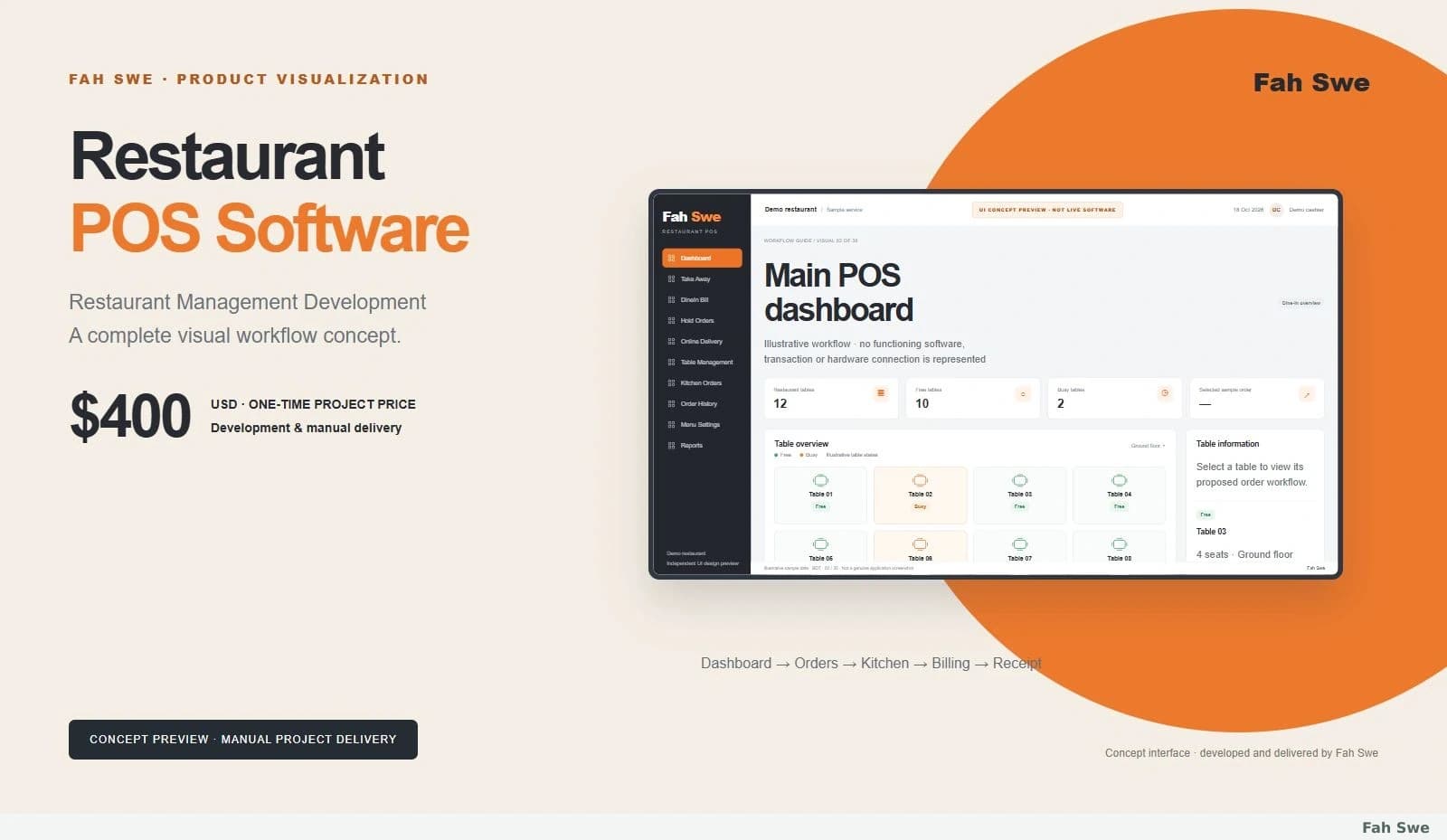
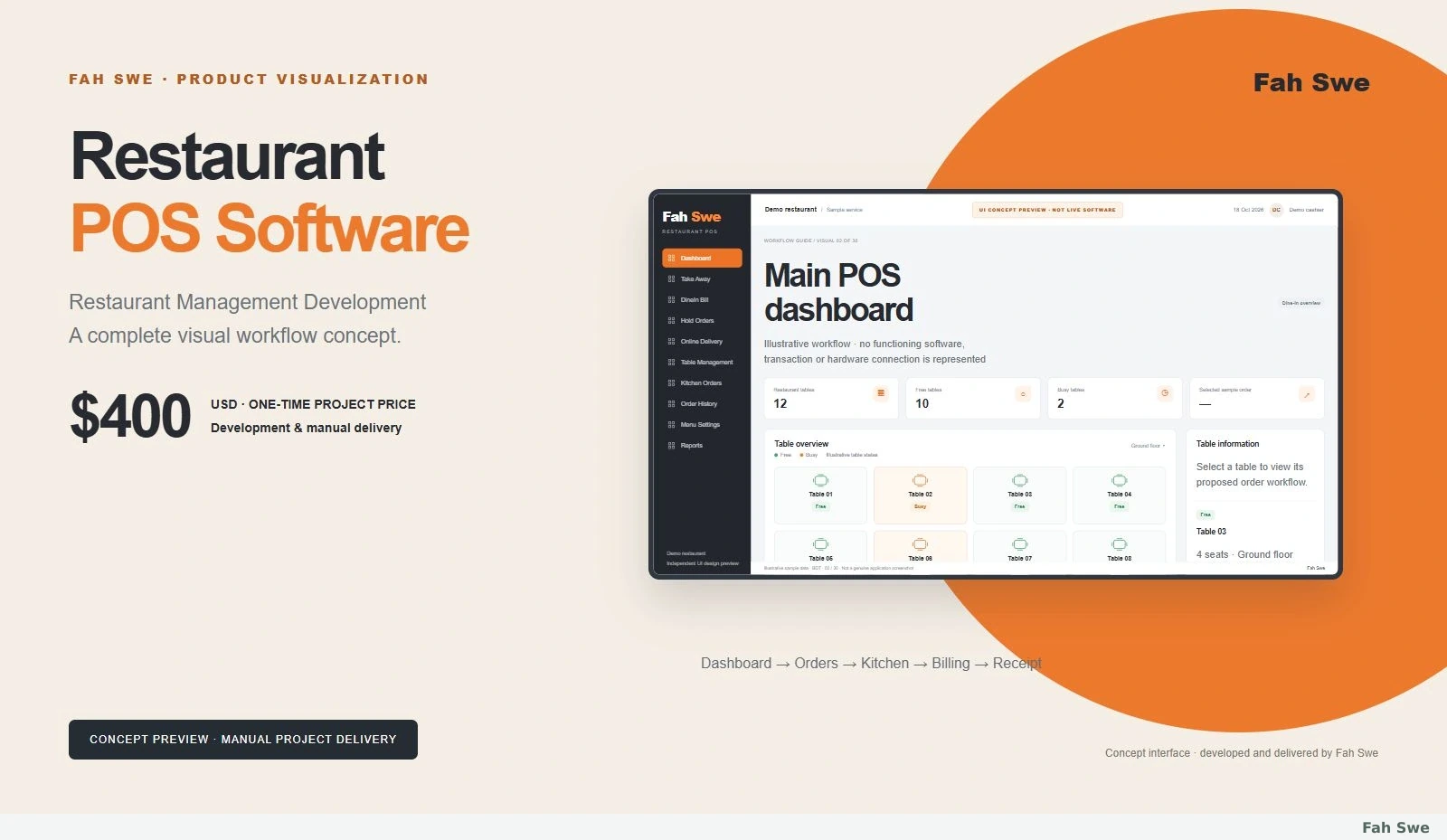
The Fah Swe Restaurant POS development cover shows the $400 USD one-time project price and manual delivery. The interface artwork is clearly labeled Concept Preview.
How to use this screen
Review the $400 one-time project price.
Read the Concept Preview label.
Follow the proposed workflow and ask Fah Swe about the development scope.
Business benefit
Clarifies the project price and manual development process before the interface walkthrough.
02
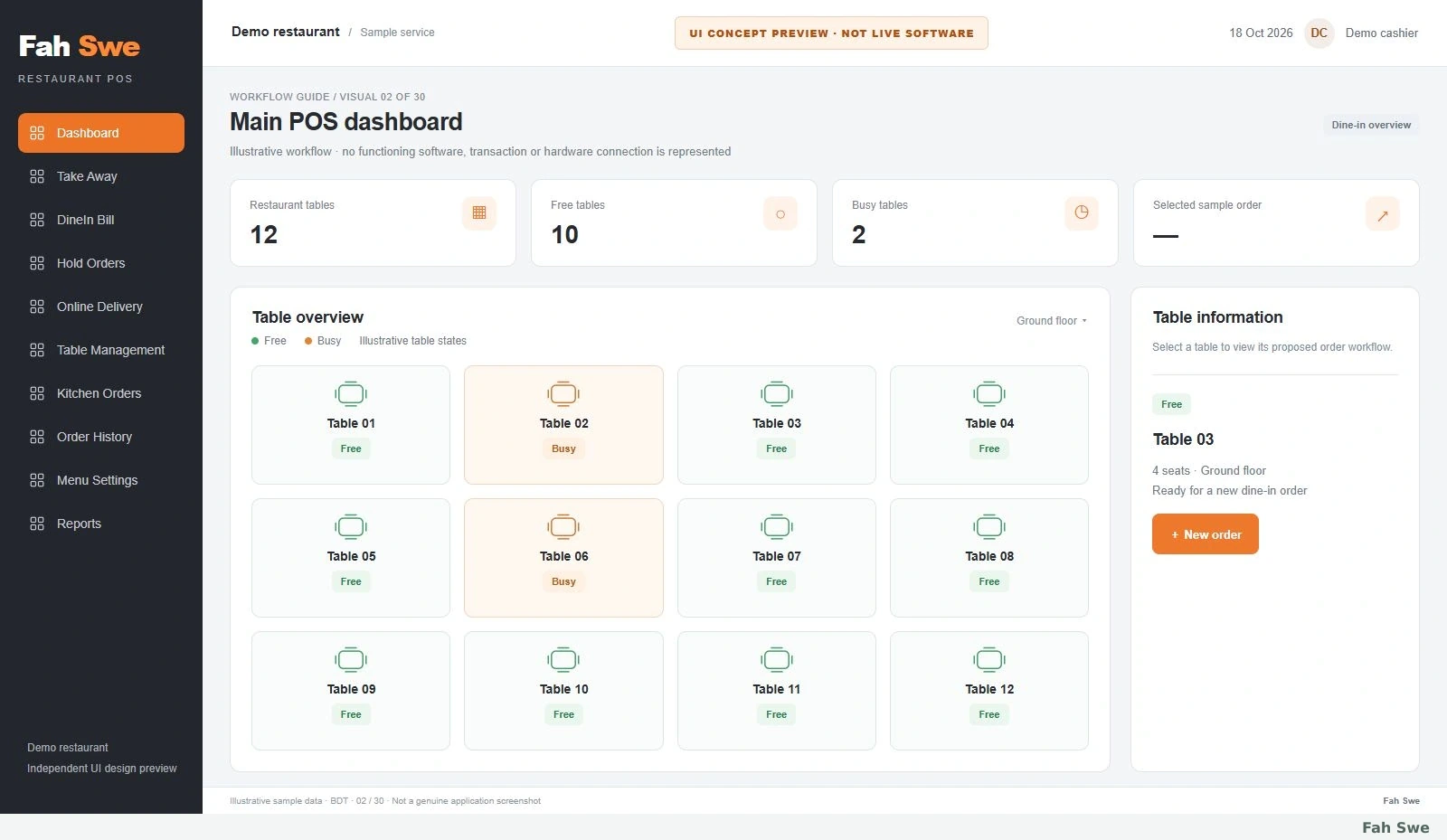
02. Main POS dashboard — Concept Preview
This full desktop concept brings Dashboard, Take Away, DineIn Bill, Hold Orders, Online Delivery and Table Management into one workspace. Table 03 is initially Free.
How to use this screen
Review the navigation on the left.
Find the dine-in and table controls.
Locate Free Table 03.
Business benefit
Suggests a single starting point for a cashier’s restaurant workflow.
03
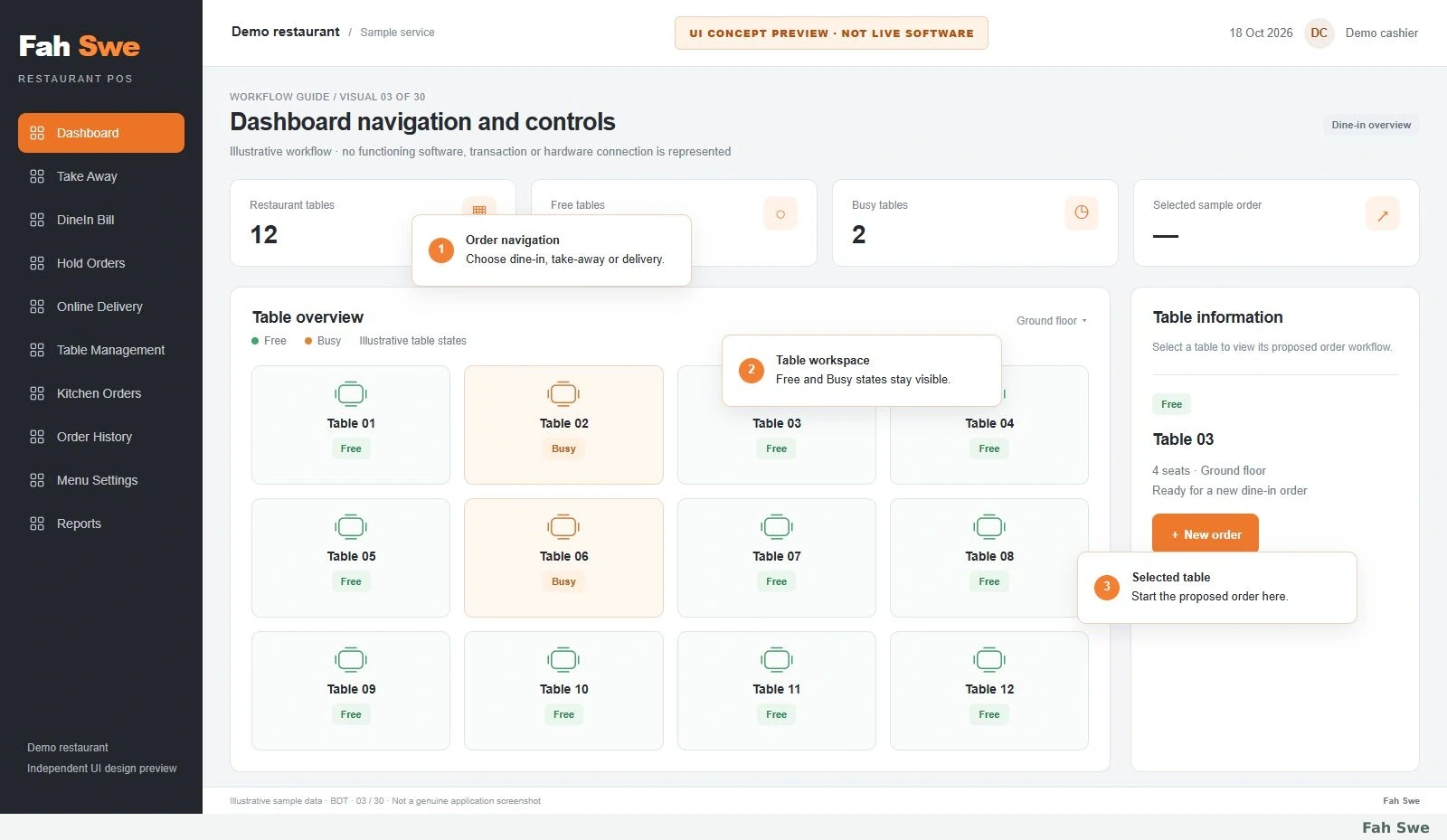
03. Dashboard navigation and controls — Concept Preview
Numbered guidance highlights the main navigation, order-type shortcuts and table workspace. These annotations explain a proposed interface, not live controls.
How to use this screen
Read the numbered navigation hints.
Compare Take Away with DineIn Bill.
Use Table Management for the illustrated dine-in flow.
Business benefit
Makes the proposed screen easier to learn before following an order.
04
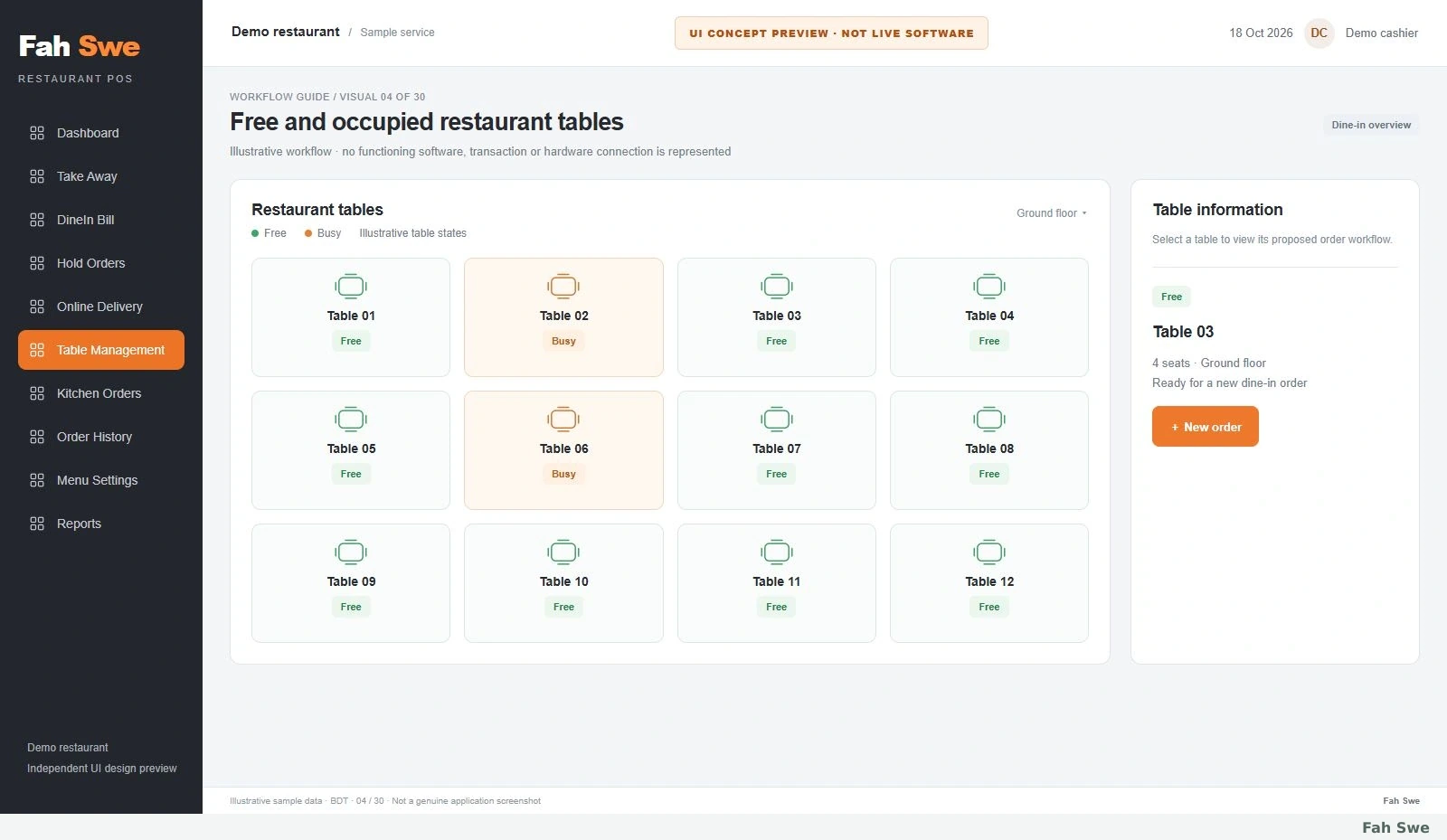
04. Free and occupied restaurant tables — Concept Preview
The concept table grid separates Free and Busy states. Table 02 and Table 06 remain Busy in this sample; Table 03 is Free before our order starts.
How to use this screen
Open the proposed Table Management area.
Use the state legend.
Identify Table 03 without changing other tables.
Business benefit
Illustrates how staff could recognize table availability quickly.
05
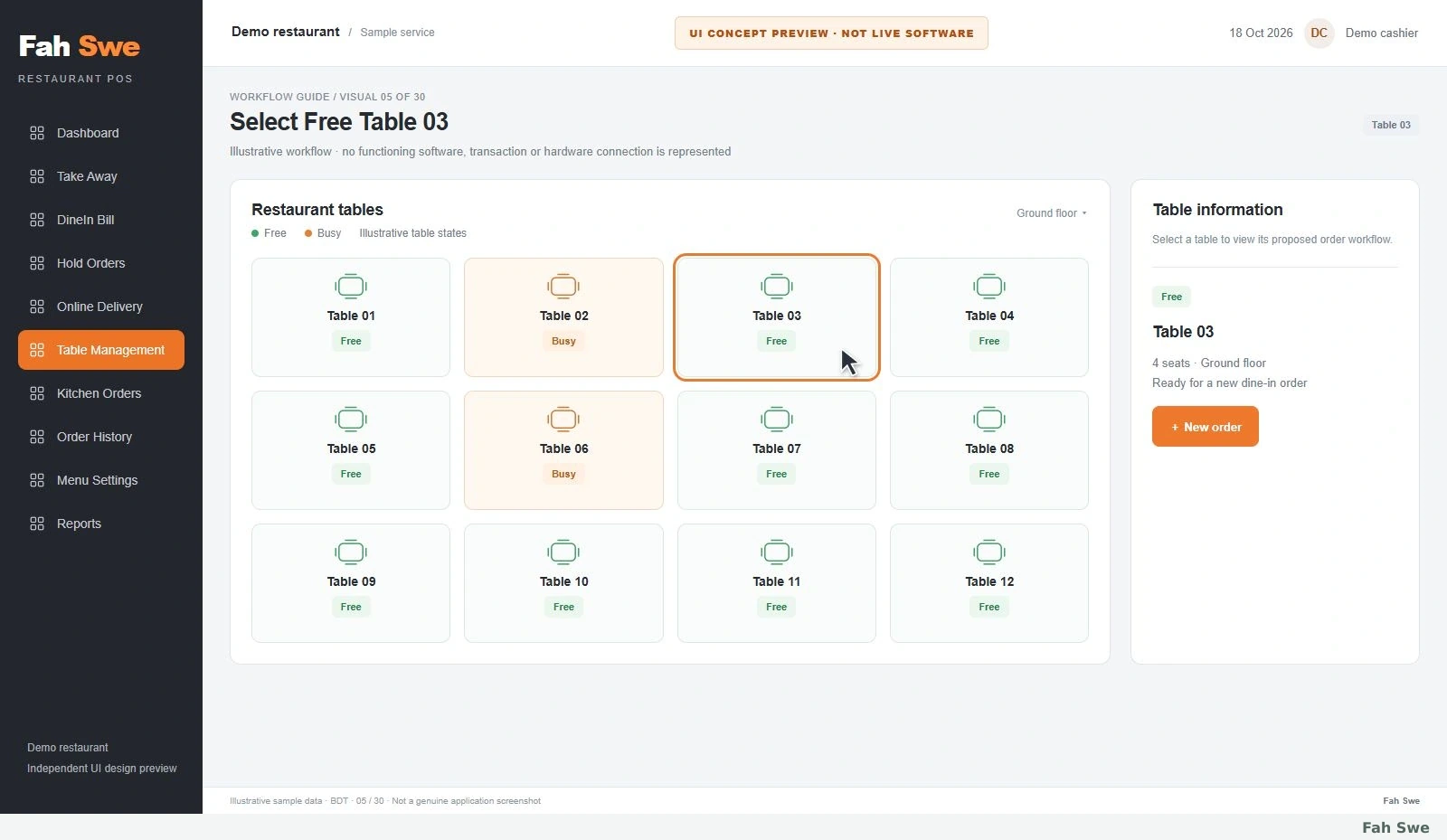
05. Select Free Table 03 — Concept Preview
The highlighted Free Table 03 and pointer show the intended selection. The right panel identifies the selected table before an order is created.
How to use this screen
Find the orange outline around Table 03.
Select that Free table in the proposed flow.
Continue with New order.
Business benefit
Reduces the chance of illustrating an order against the wrong table.
06
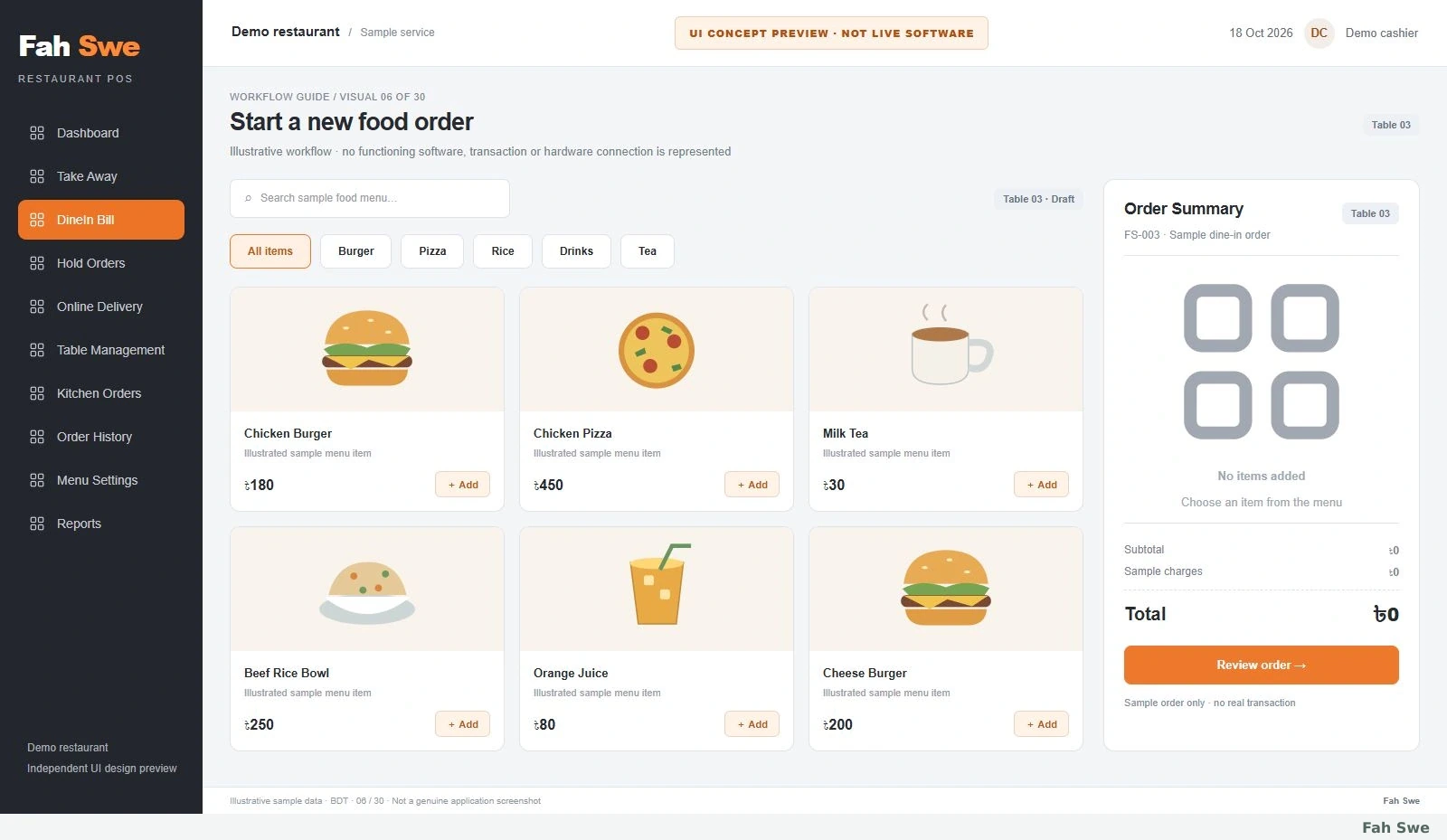
06. Start a new food order — Concept Preview
The full food-ordering concept is linked to Table 03. Its Order Summary is empty and the total is ৳0 before any item is added.
How to use this screen
Check Table 03 in the header.
Review the available menu categories.
Confirm the empty summary before choosing food.
Business benefit
Provides a clear starting state for a new dine-in order.
07
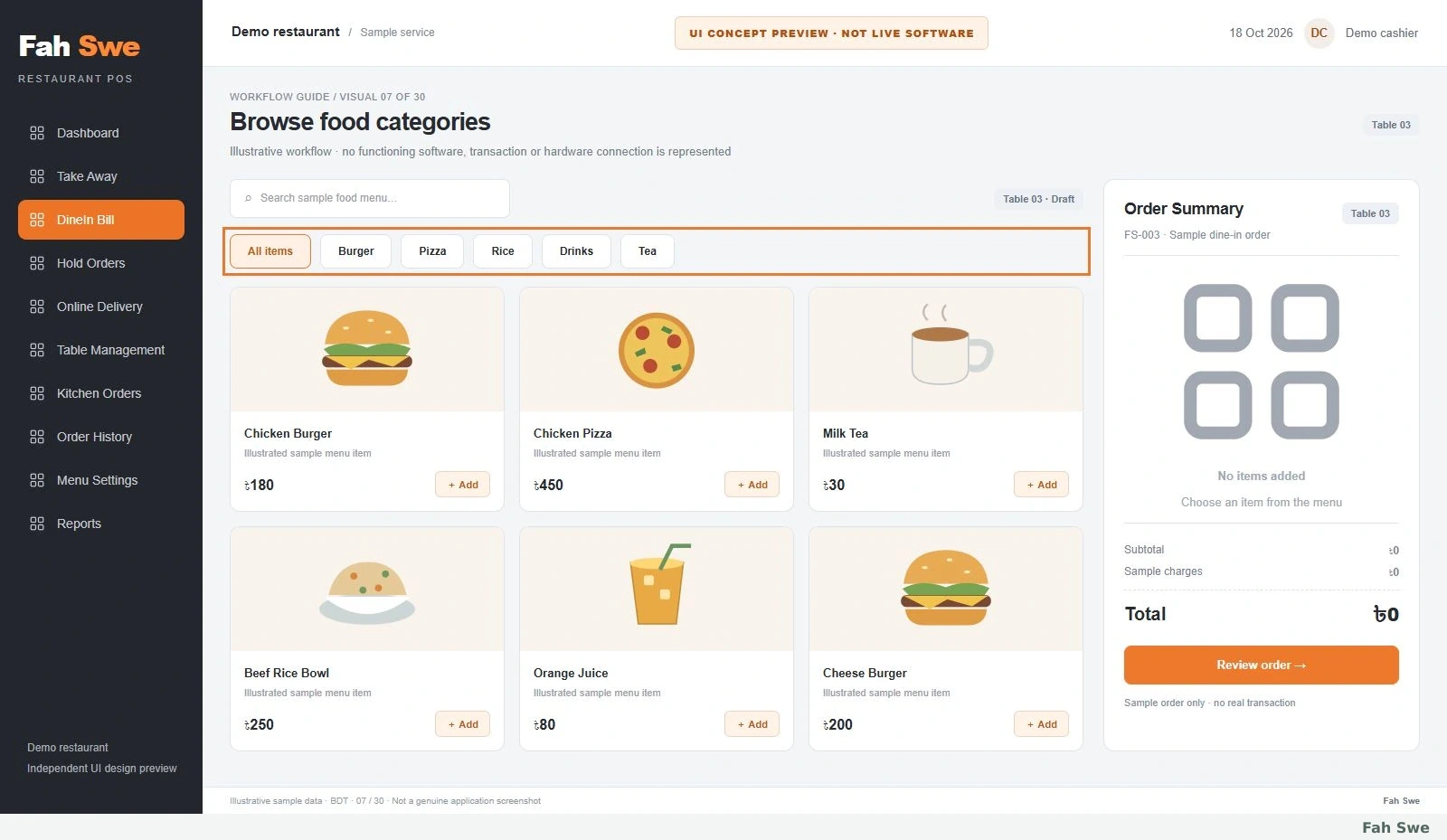
07. Browse food categories — Concept Preview
Burger, Pizza, Rice, Drinks and Tea appear as separate categories above the sample menu. This screen explains menu organization before an item is chosen.
How to use this screen
Review all five category tabs.
Locate Burger for the next step.
Keep the empty Order Summary visible.
Business benefit
Demonstrates a proposed way to find items by food type.
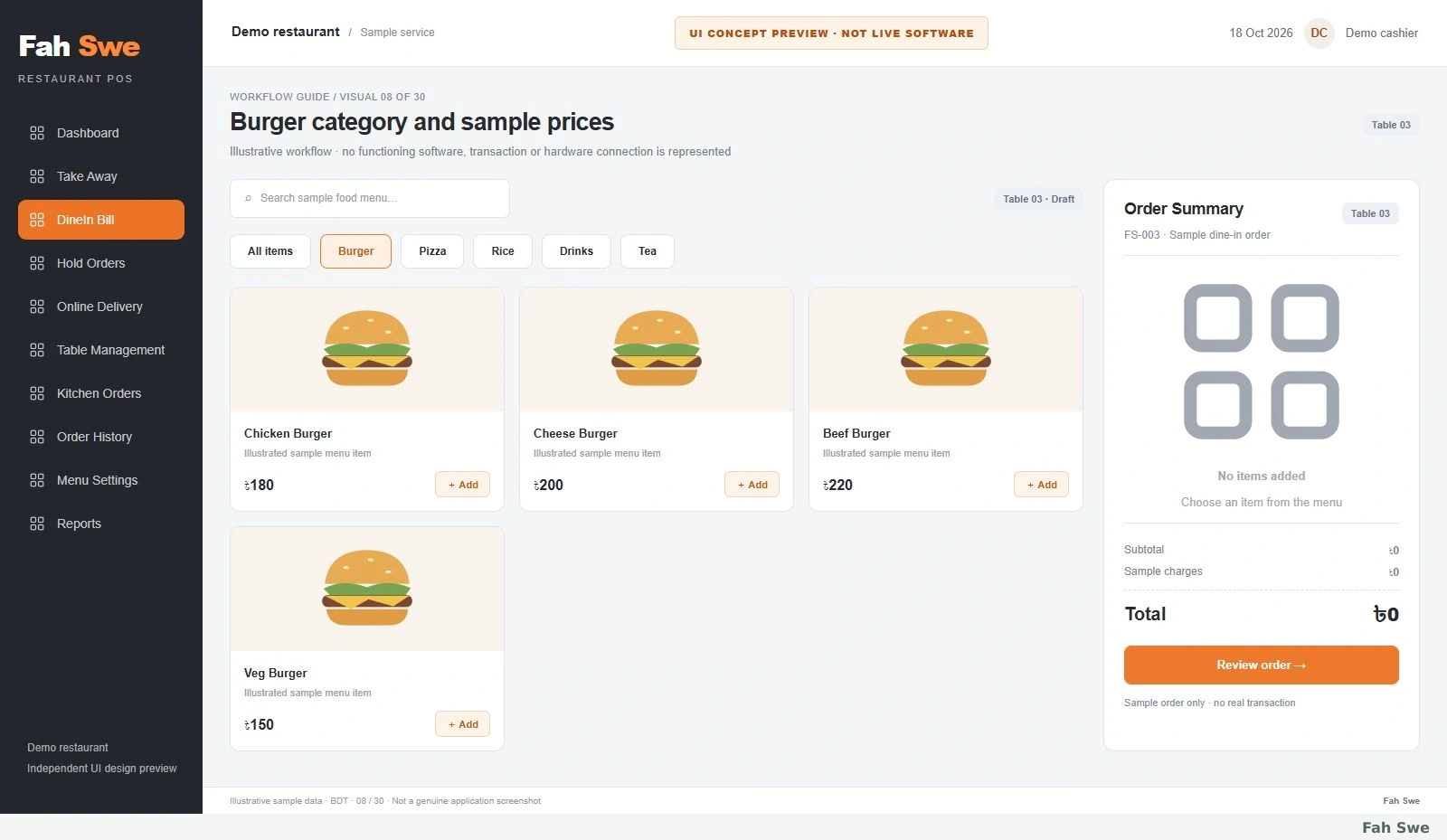
08
08. Burger category and sample prices — Concept Preview
The Burger category contains illustrated menu cards with names and sample prices. Chicken Burger is ৳180; the other cards are browsing examples, not items in our order.
How to use this screen
Open the highlighted Burger category.
Read the Chicken Burger name and ৳180 price.
Locate its Add button.
Business benefit
Shows how names, food illustrations and prices could support item selection.
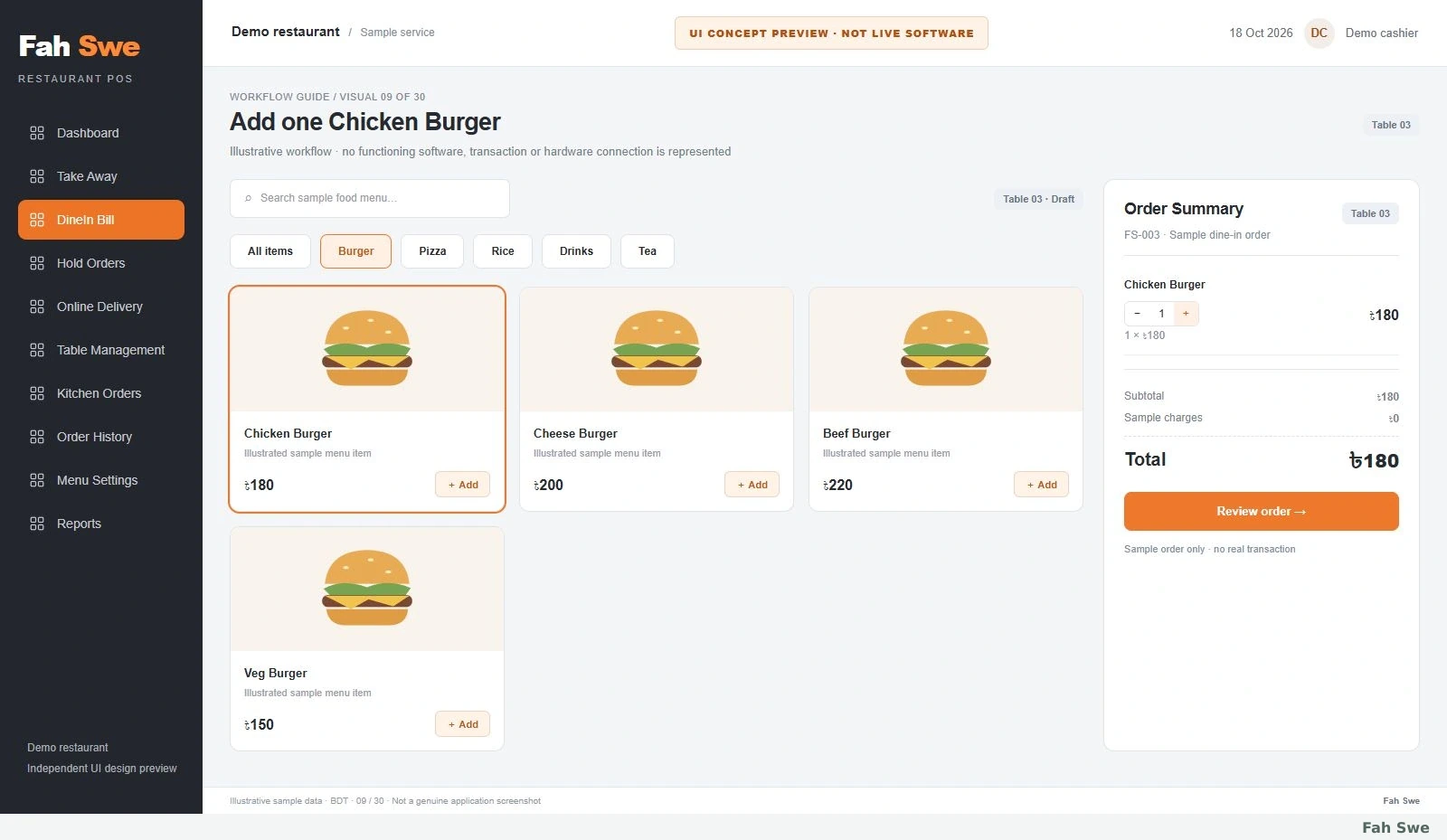
09
09. Add one Chicken Burger — Concept Preview
The summary now contains one Chicken Burger at ৳180. The highlighted menu card and order row connect the chosen item with its first calculated subtotal.
How to use this screen
Select Add on Chicken Burger.
Check quantity 1 in the summary.
Check the ৳180 subtotal.
Business benefit
Makes the effect of adding the first item visible.
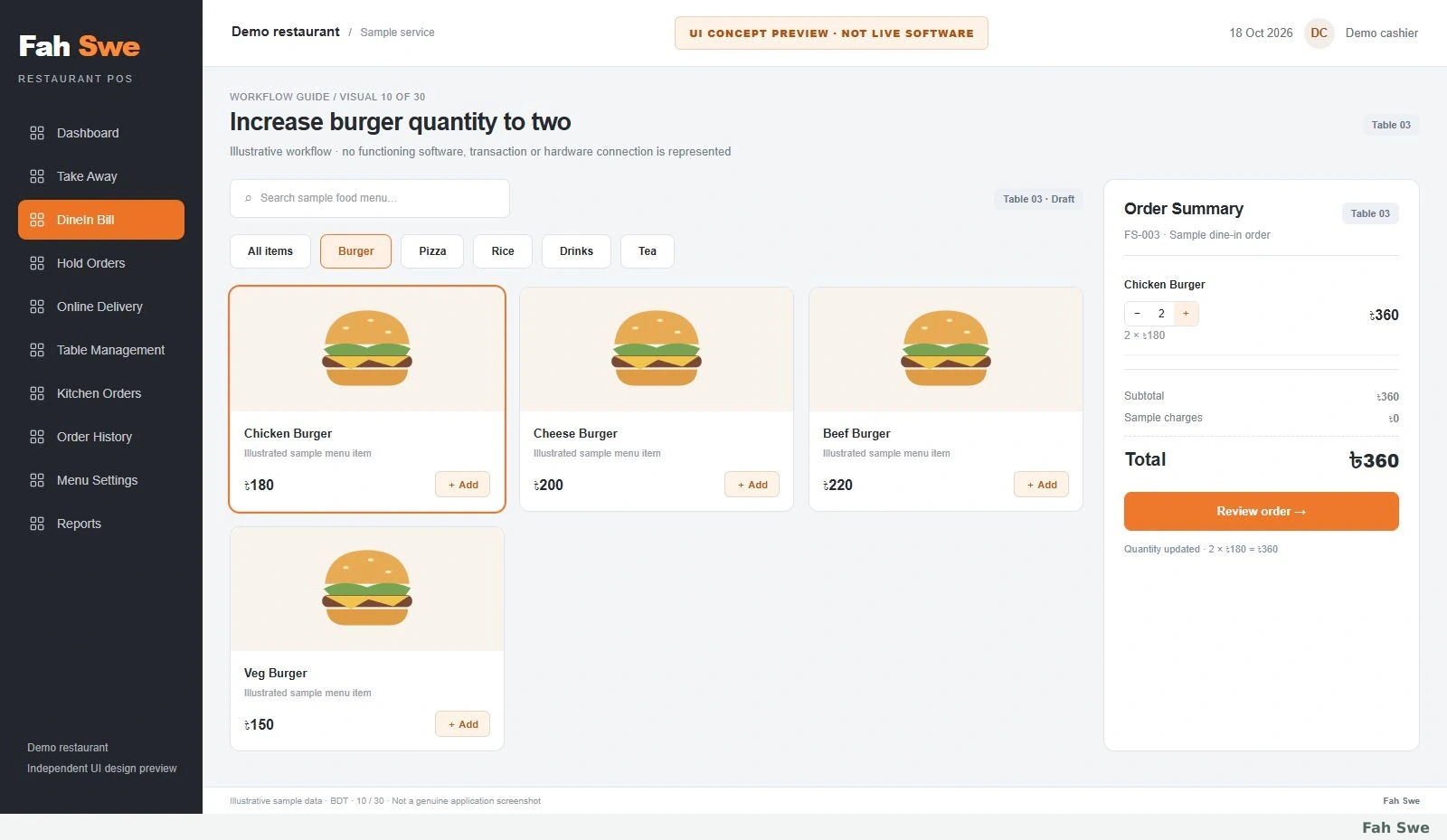
10
10. Increase burger quantity to two — Concept Preview
Chicken Burger quantity is 2. The concept explicitly shows 2 × ৳180 = ৳360, with plus and minus quantity controls in the order row.
How to use this screen
Find the burger quantity control.
Increase the quantity from 1 to 2.
Verify the line total and subtotal are ৳360.
Business benefit
Explains quantity editing and the corresponding arithmetic.
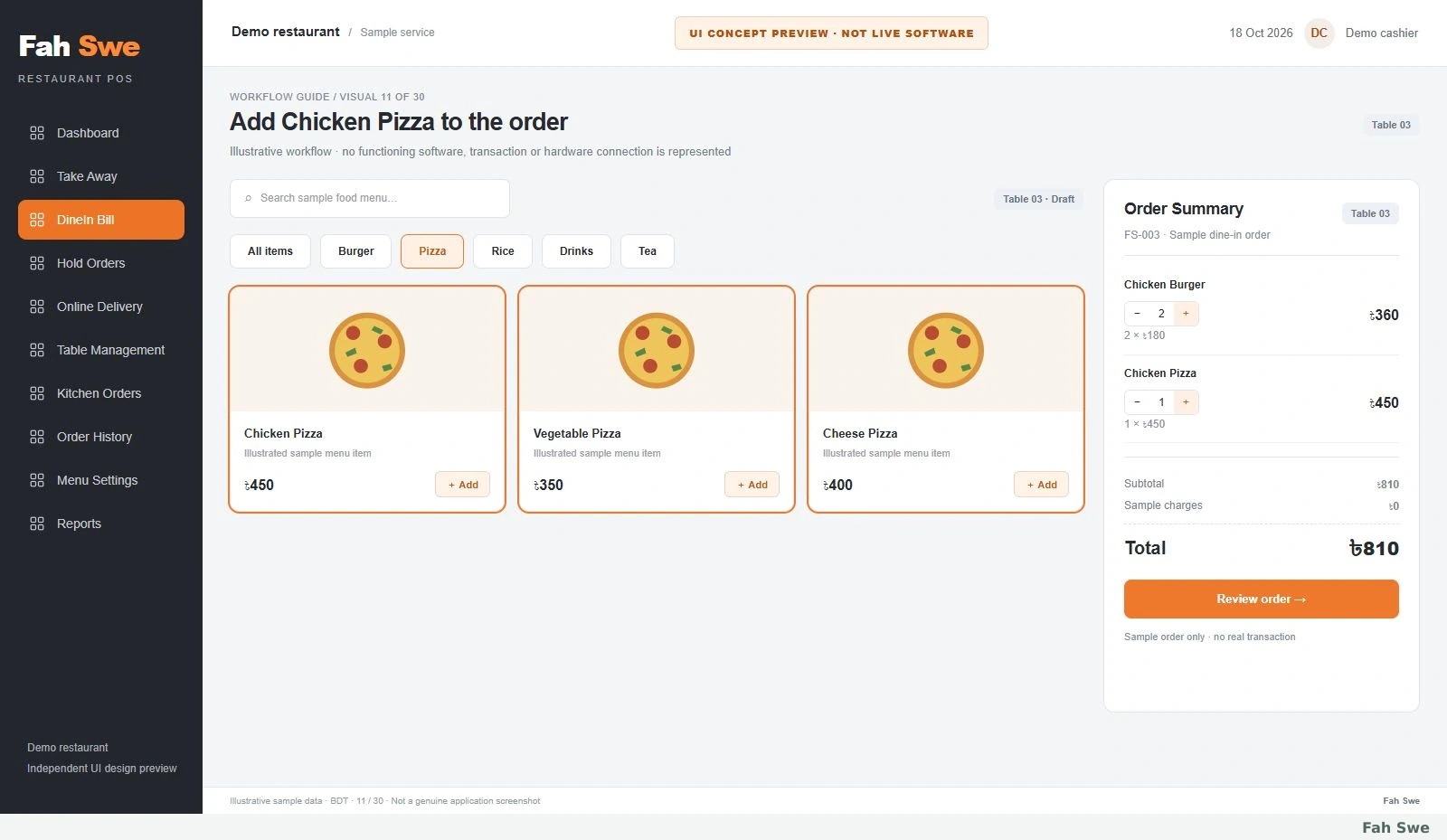
11
11. Add Chicken Pizza to the order — Concept Preview
One Chicken Pizza at ৳450 joins the two burgers. The new subtotal is ৳360 + ৳450 = ৳810; the burger quantity stays 2.
How to use this screen
Review the Pizza category.
Add one Chicken Pizza.
Check both rows and the ৳810 subtotal.
Business benefit
Demonstrates adding a different category without losing earlier quantities.
12
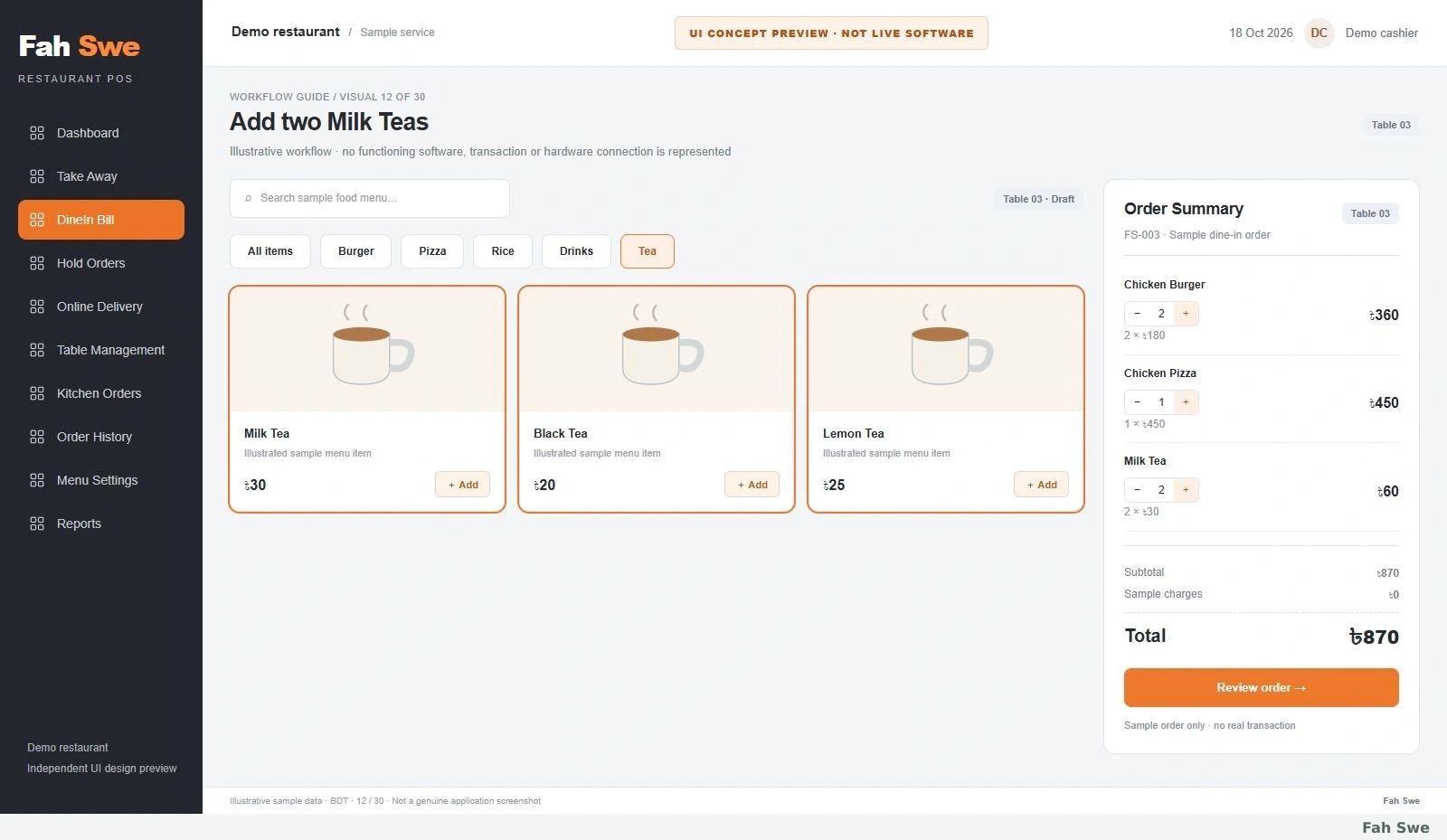
12. Add two Milk Teas — Concept Preview
Milk Tea is ৳30 per cup and quantity is 2, giving ৳60. Adding it to ৳810 produces the complete ৳870 sample order.
How to use this screen
Open the Tea category.
Set Milk Tea quantity to 2.
Verify ৳60 for tea and ৳870 overall.
Business benefit
Shows another quantity calculation while keeping one consistent order.
13
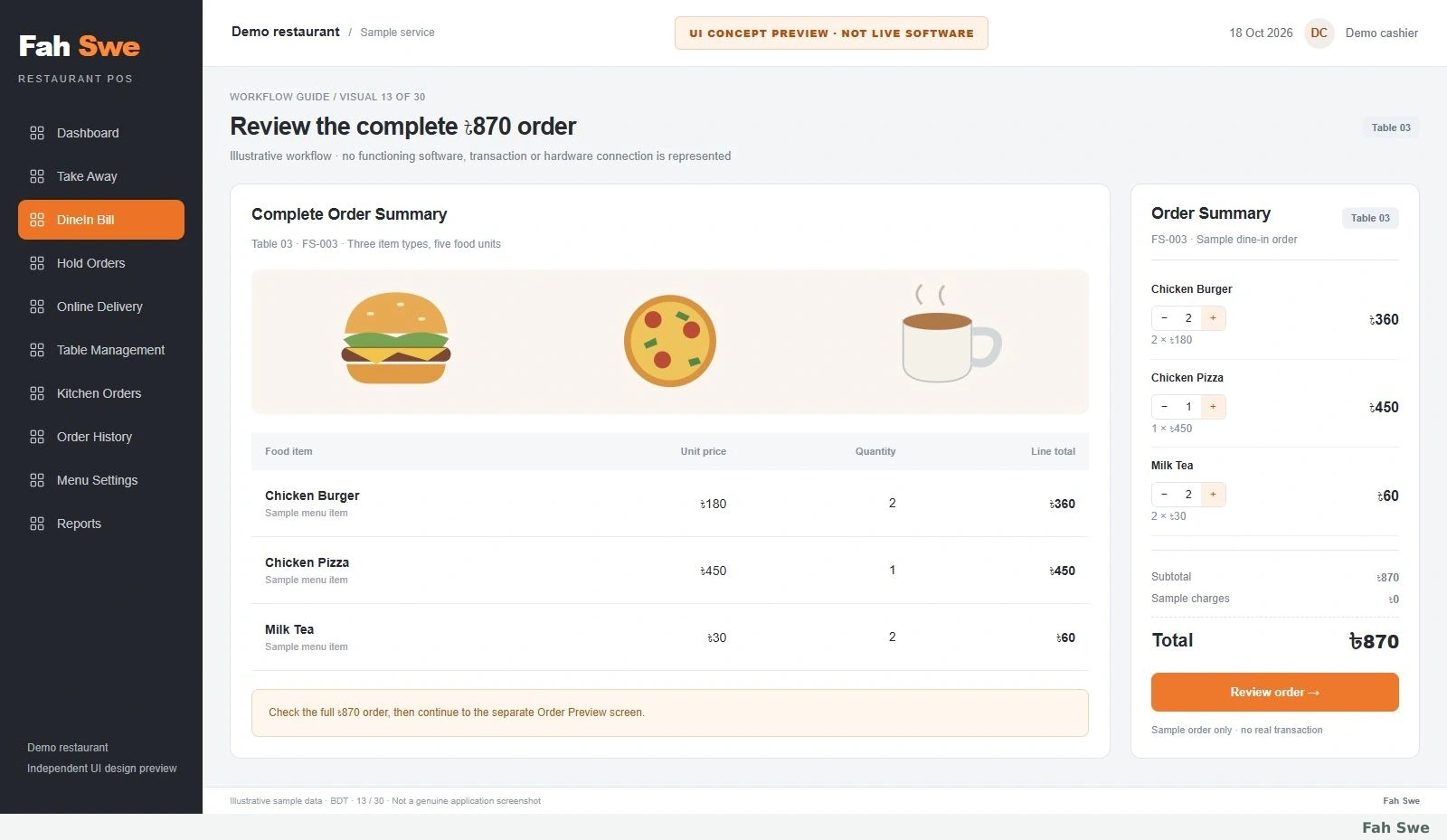
13. Review the complete ৳870 order — Concept Preview
The complete summary contains Chicken Burger ×2 = ৳360, Chicken Pizza ×1 = ৳450 and Milk Tea ×2 = ৳60. The subtotal and total are ৳870 with no extra sample charges.
How to use this screen
Read all three item rows.
Check five total food units.
Verify ৳870 before opening the preview.
Business benefit
Offers a final visual check of items, quantities and totals.
14
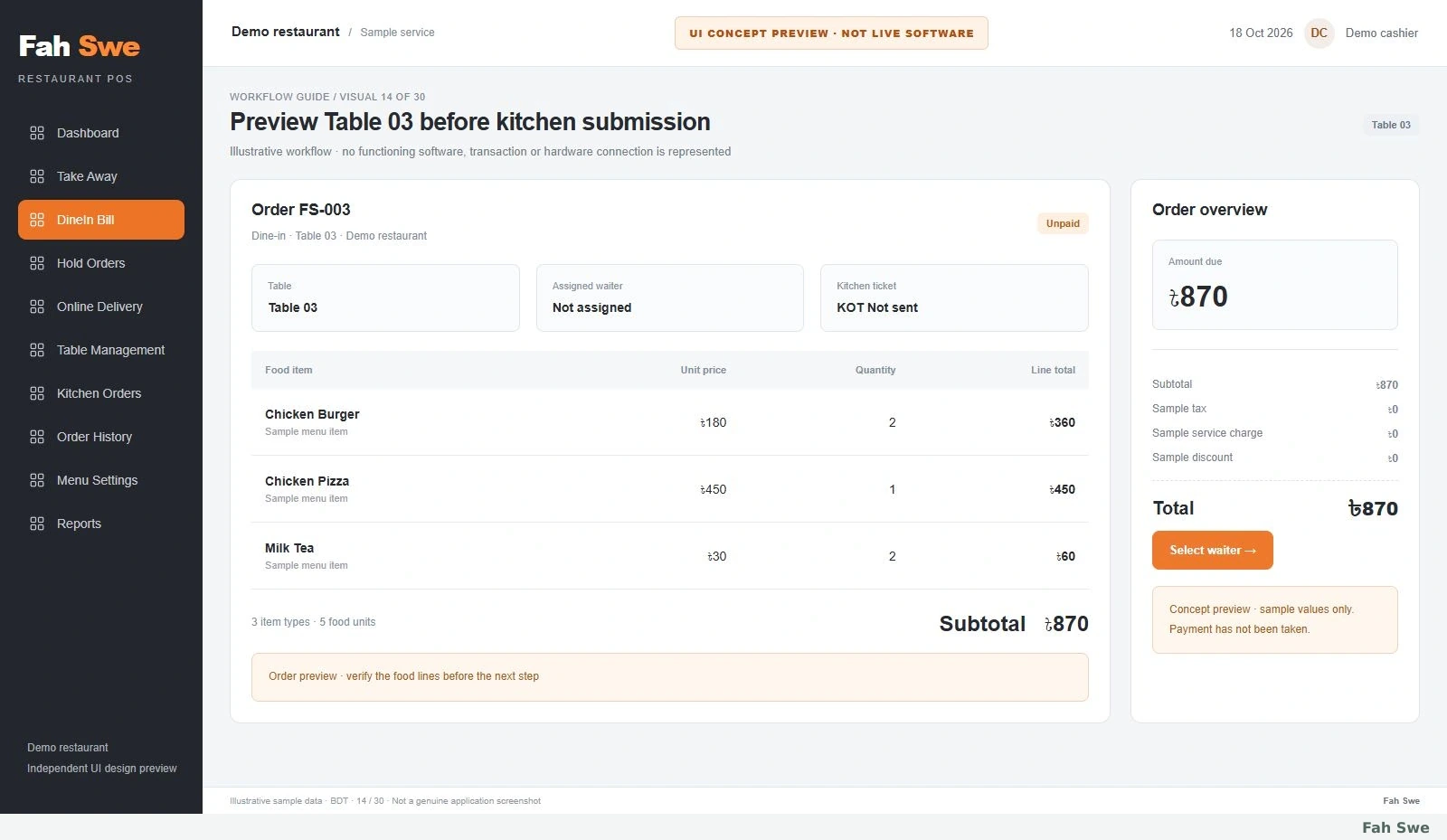
14. Preview Table 03 before kitchen submission — Concept Preview
The order preview presents the same three lines and ৳870 total in a review table. Waiter assignment is still pending and KOT has not been sent.
How to use this screen
Check Table 03 and the draft status.
Review item names and quantities.
Continue to Select waiter.
Business benefit
Places a review stage before assigning staff and kitchen work.
15
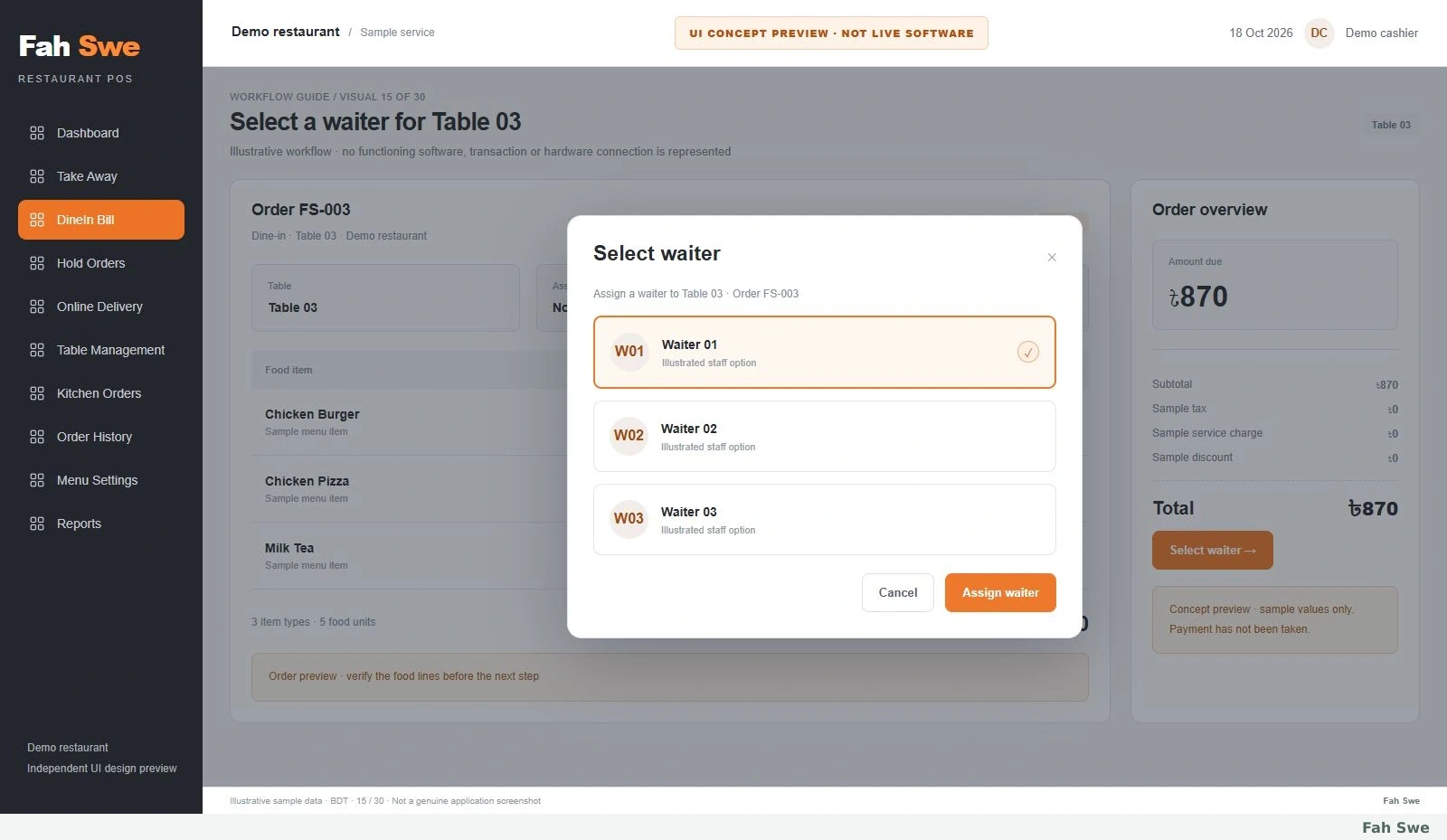
15. Select a waiter for Table 03 — Concept Preview
A Select Waiter modal appears over the complete POS workspace. Waiter 01 is highlighted while the underlying ৳870 Table 03 order stays visible.
How to use this screen
Open the waiter selector from the order.
Choose Waiter 01 in the proposed list.
Use Assign waiter to confirm the concept flow.
Business benefit
Illustrates assigning responsibility without leaving the order context.
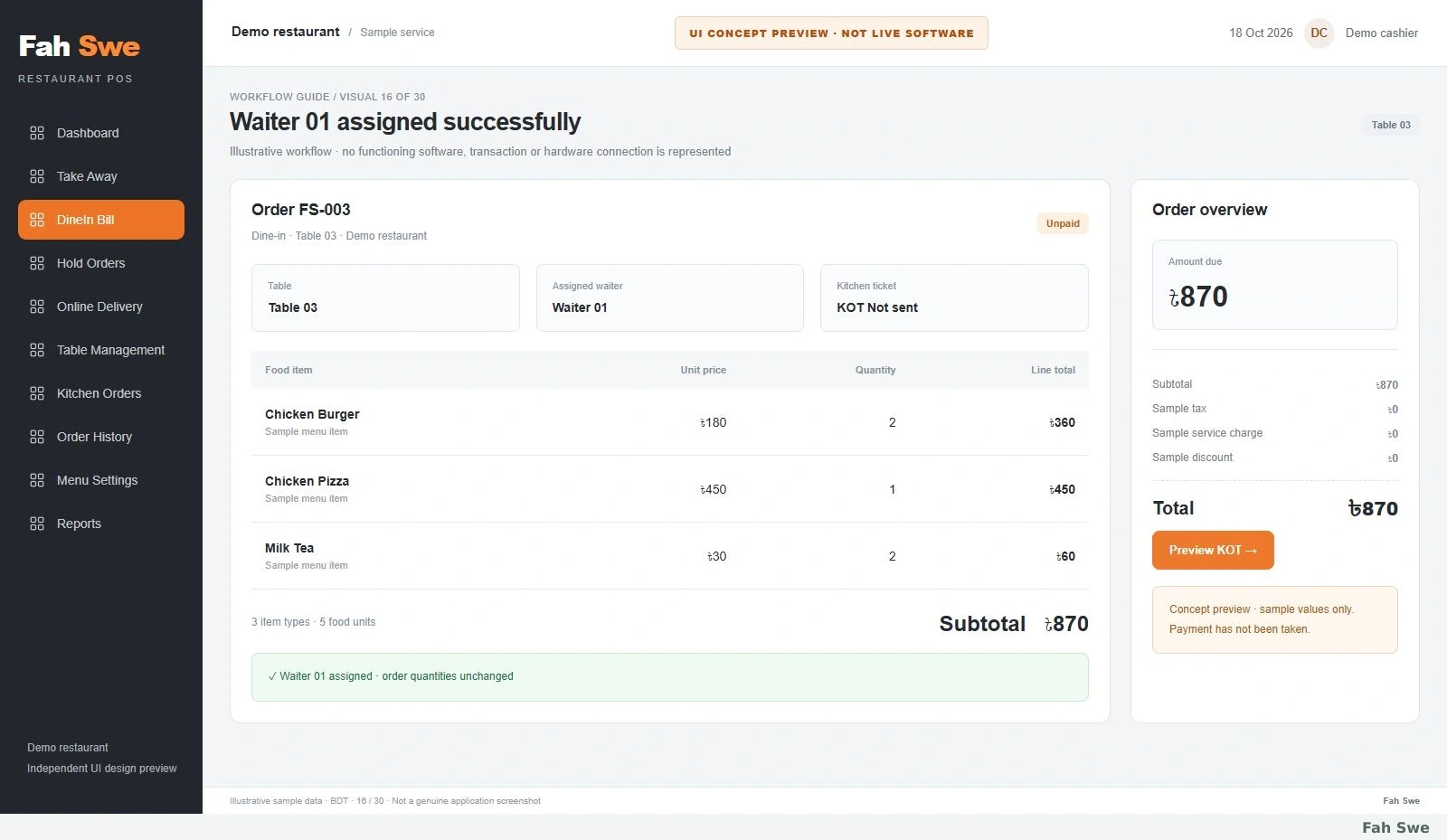
The order now displays Waiter 01 in its assigned-staff panel. The three item quantities and ৳870 total are unchanged, and the KOT is ready for review.
How to use this screen
Check the Waiter 01 assignment badge.
Recheck the unchanged order.
Proceed to the kitchen ticket preview.
Business benefit
Keeps the waiter relationship explicit throughout later order steps.
17
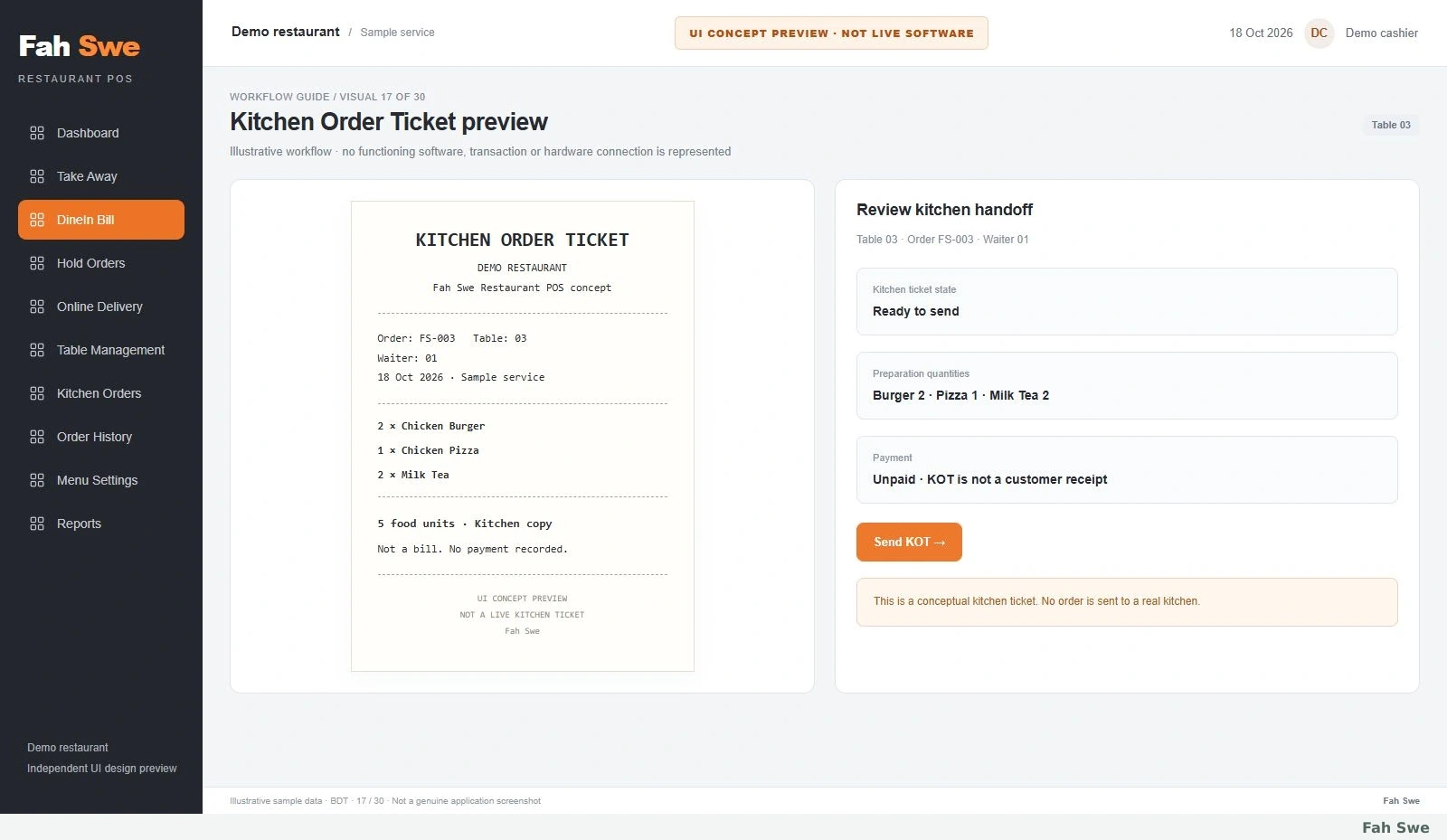
17. Kitchen Order Ticket preview — Concept Preview
The KOT concept lists Table 03, Waiter 01 and food quantities for kitchen preparation. It is clearly labeled a kitchen ticket, not a customer bill or payment receipt.
How to use this screen
Review the kitchen-ticket heading.
Check Burger 2, Pizza 1 and Tea 2.
Use Send KOT as the next illustrated action.
Business benefit
Separates kitchen preparation information from customer billing.
18
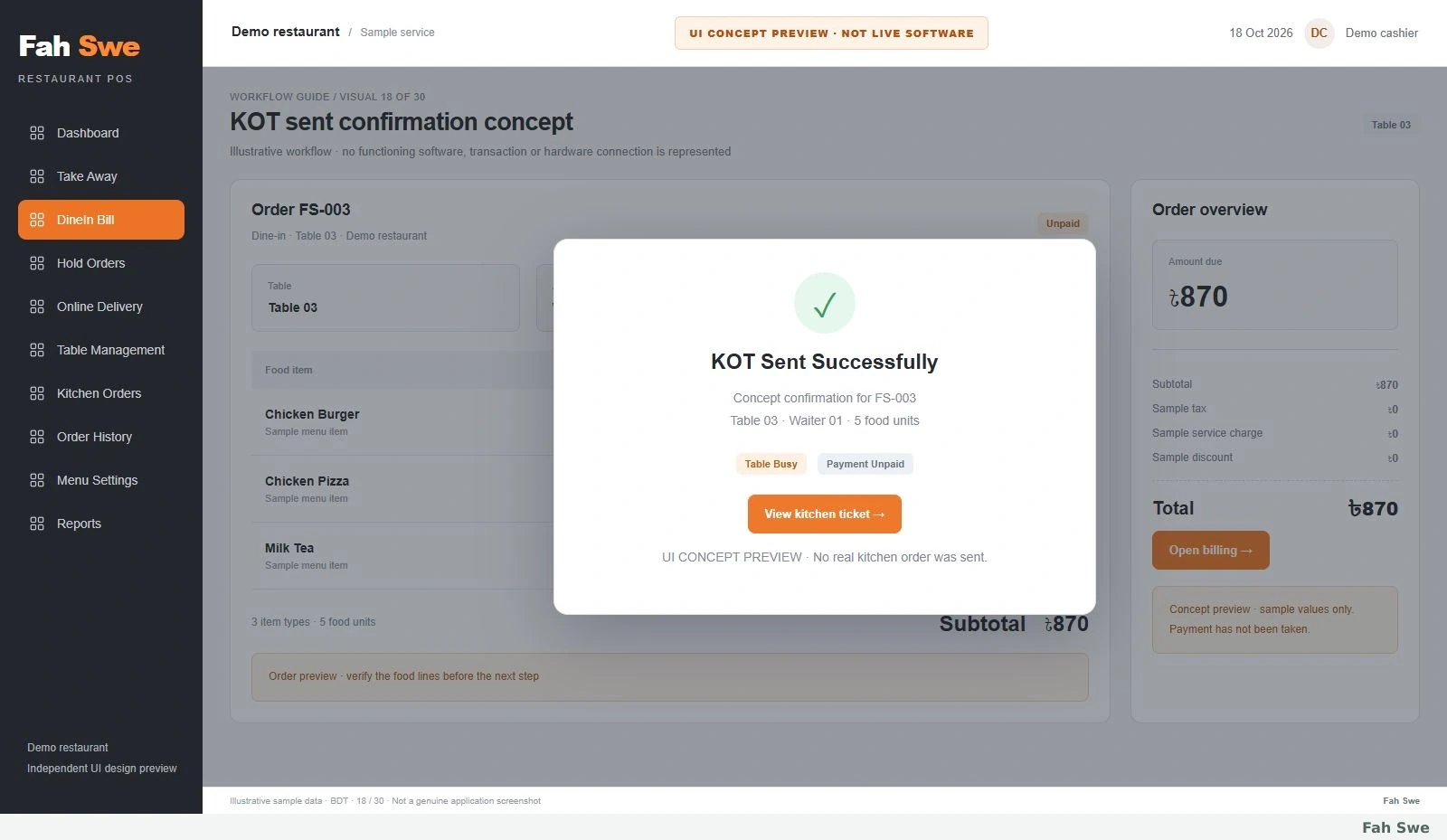
18. KOT sent confirmation concept — Concept Preview
The concept shows KOT Sent Successfully for sample order FS-003. Waiter 01 remains assigned, Table 03 becomes Busy and payment remains Unpaid.
How to use this screen
Read the KOT confirmation.
Verify Table 03 and Waiter 01.
Notice that no payment has been taken.
Business benefit
Shows an intended kitchen handoff while preserving billing status.
19
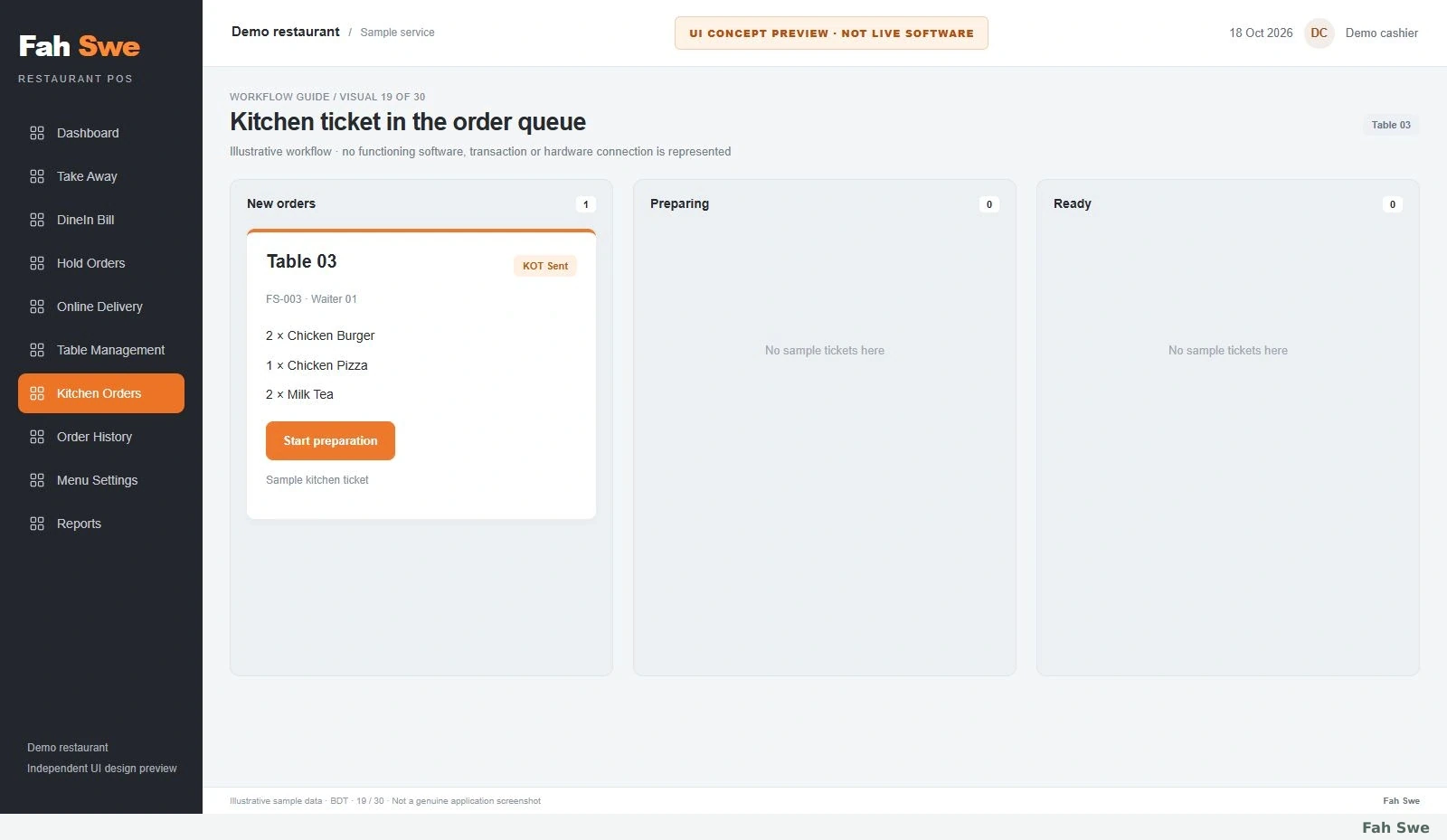
19. Kitchen ticket in the order queue — Concept Preview
The kitchen display concept places the Table 03 ticket in New orders. Preparing and Ready columns are separate empty states; no preparation completion is claimed.
How to use this screen
Locate FS-003 in New orders.
Read all five food units and Waiter 01.
Compare the separate preparation columns.
Business benefit
Illustrates a possible kitchen queue without confusing it with a receipt.
20
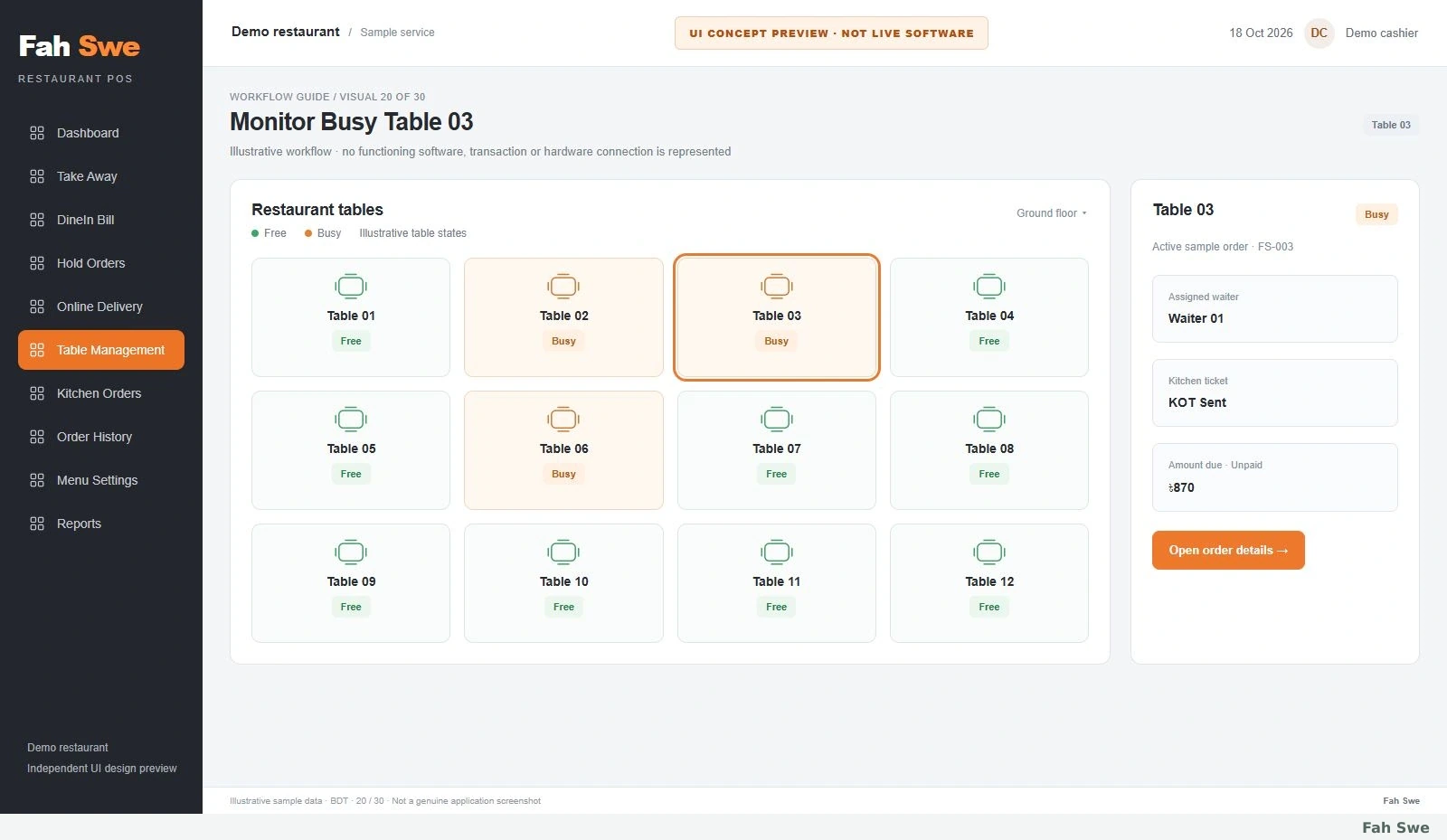
20. Monitor Busy Table 03 — Concept Preview
Table 03 is now Busy after the KOT handoff. Table 02 and Table 06 retain their earlier Busy states, and all other displayed tables remain Free.
How to use this screen
Return to the table overview.
Find Busy Table 03.
Use its order reference to identify the current order.
Business benefit
Demonstrates consistent table status during an active order.
21
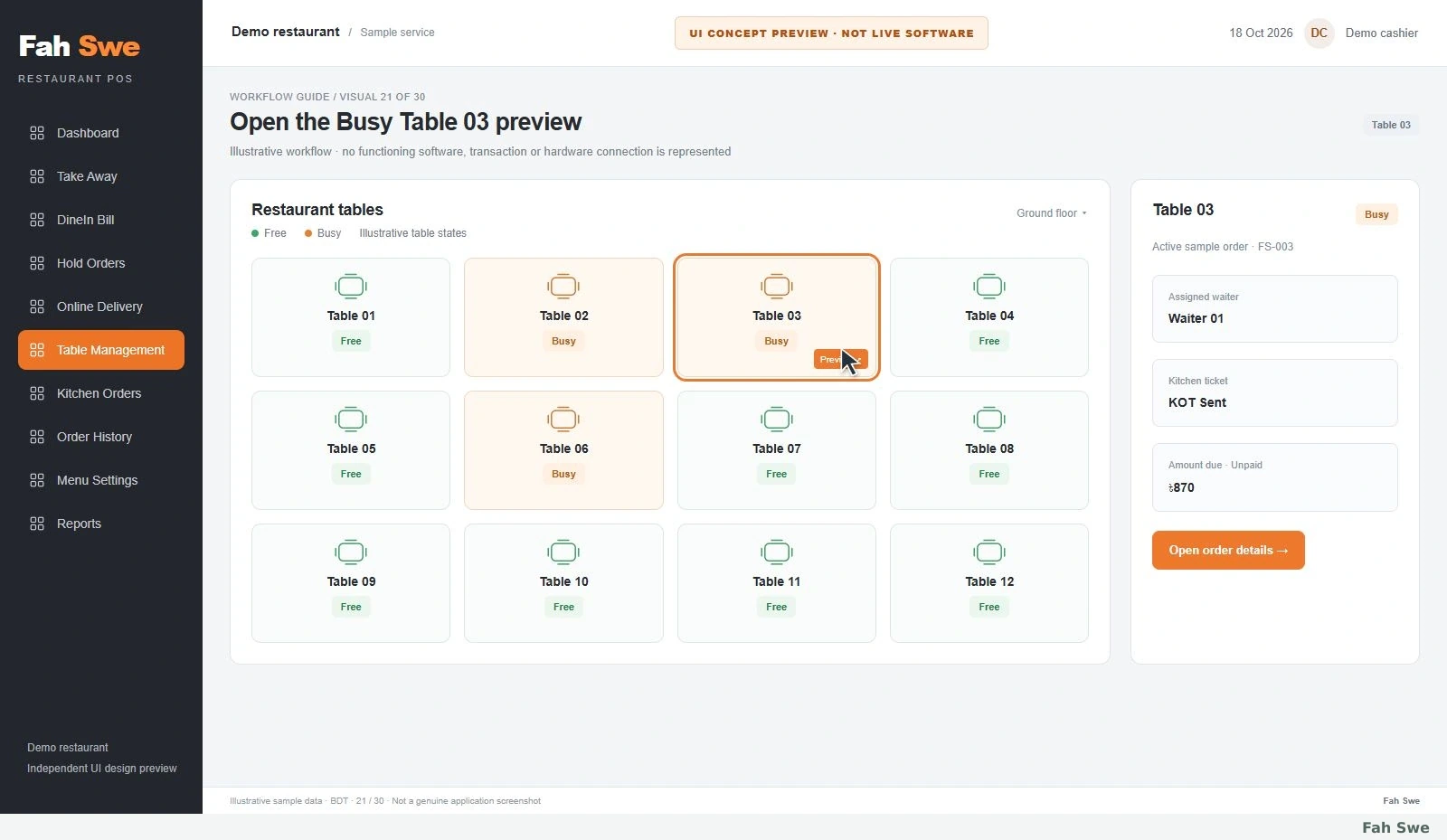
21. Open the Busy Table 03 preview — Concept Preview
The Preview control is highlighted on Busy Table 03. A side preview summarizes FS-003, Waiter 01, KOT Sent and the unpaid ৳870 amount.
How to use this screen
Locate Preview on Table 03.
Read the order summary panel.
Continue to the complete existing order.
Business benefit
Suggests a quick order check before opening full details.
22
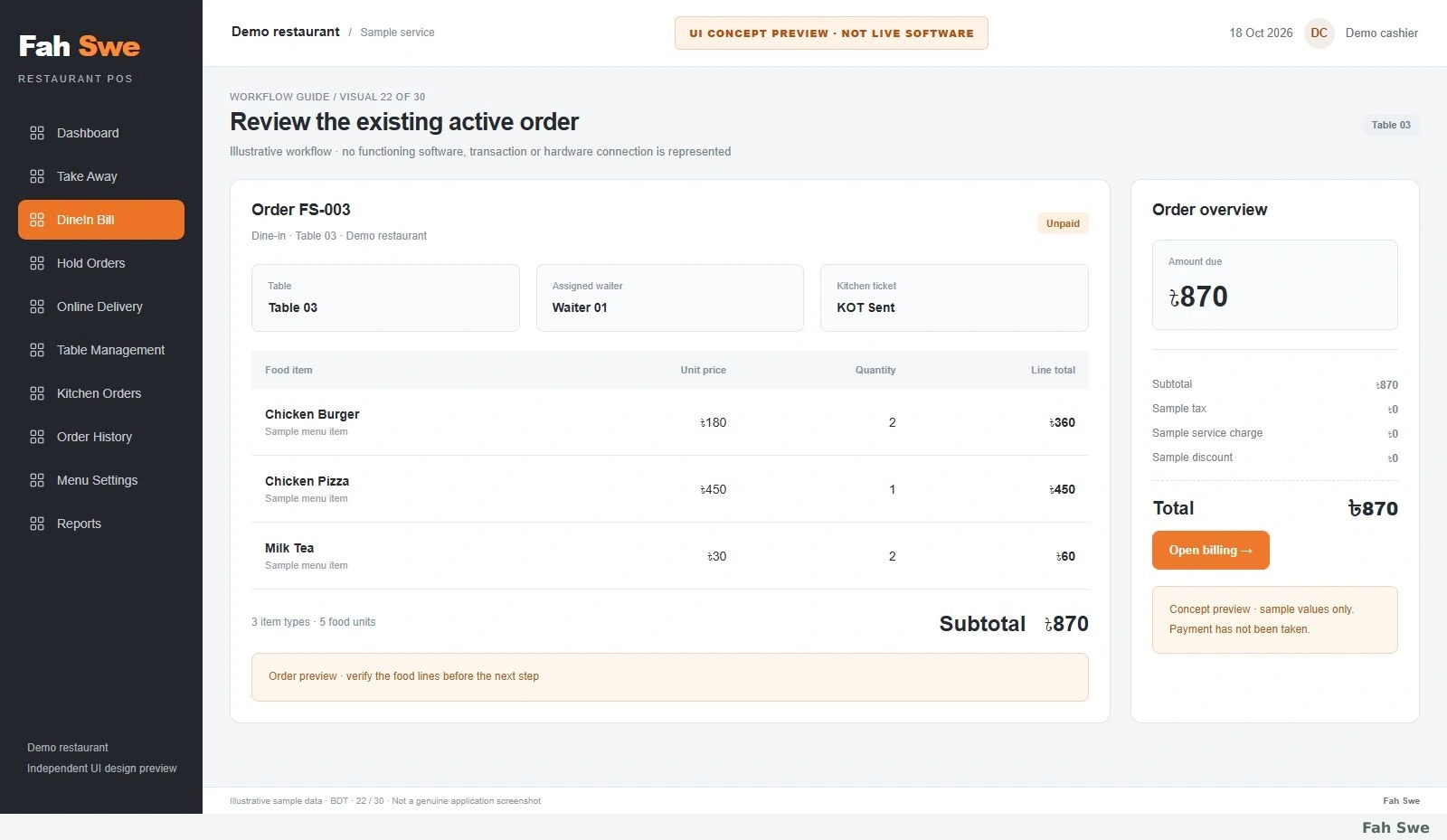
22. Review the existing active order — Concept Preview
The existing order screen keeps the assigned Waiter 01, KOT Sent status, three food lines and ৳870 total together. The order is still unpaid.
How to use this screen
Confirm the order reference FS-003.
Review waiter and kitchen status.
Open billing only after checking the items.
Business benefit
Connects active-table management with the billing stage.
23
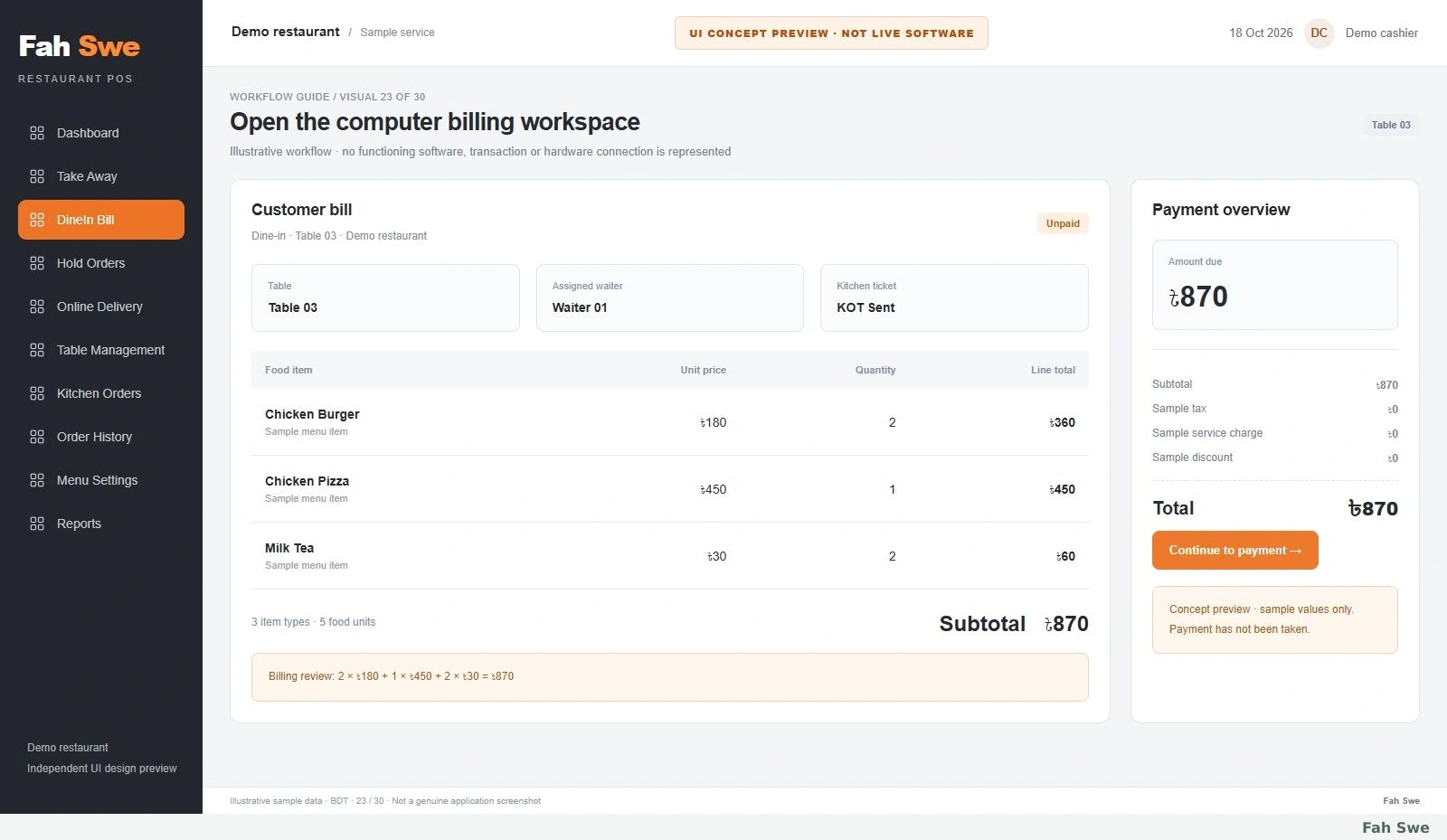
23. Open the computer billing workspace — Concept Preview
The billing workspace shows Table 03 and the complete unpaid order beside an amount-due panel. It appears before payment selection in this concept sequence.
How to use this screen
Open DineIn Bill for FS-003.
Review the billing item table.
Confirm the amount due is ৳870.
Business benefit
Provides a clear billing checkpoint before accepting payment.
24
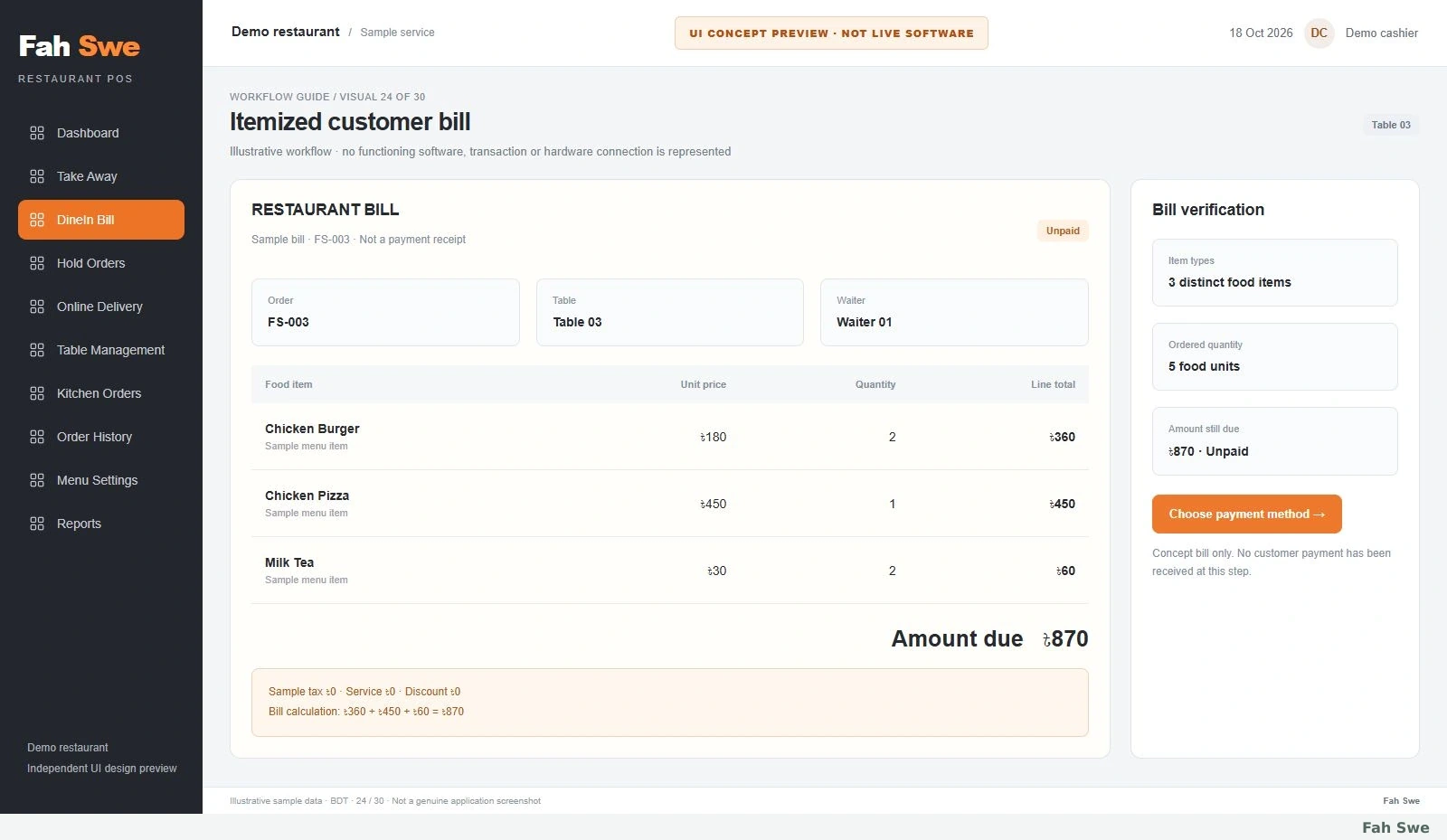
24. Itemized customer bill — Concept Preview
The bill lists unit prices, quantities and line totals: ৳180 ×2, ৳450 ×1 and ৳30 ×2. Subtotal and total are ৳870; sample tax, service and discount are ৳0.
How to use this screen
Read each unit price and quantity.
Add the three line totals.
Check that ৳870 is due before payment.
Business benefit
Makes the arithmetic visible to the proposed cashier and customer review.
25
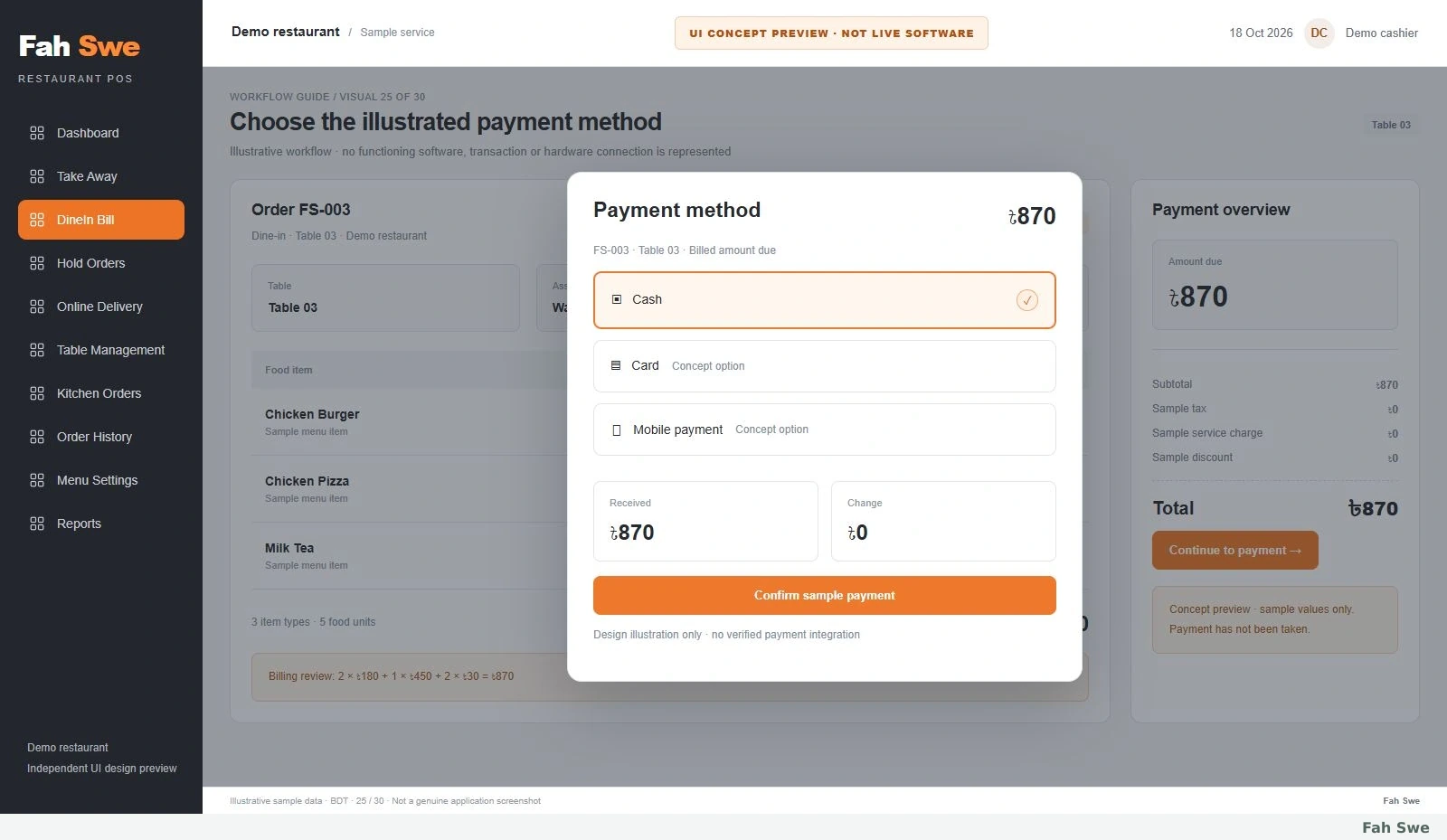
25. Choose the illustrated payment method — Concept Preview
The proposed payment screen displays Cash, Card and Mobile payment options. Cash is selected with received ৳870 and change ৳0. These are design options, not verified integrations.
How to use this screen
Review the billed ৳870 first.
Choose Cash in this sample.
Check received amount and change before confirmation.
Business benefit
Explains a possible payment review without claiming a live payment service.
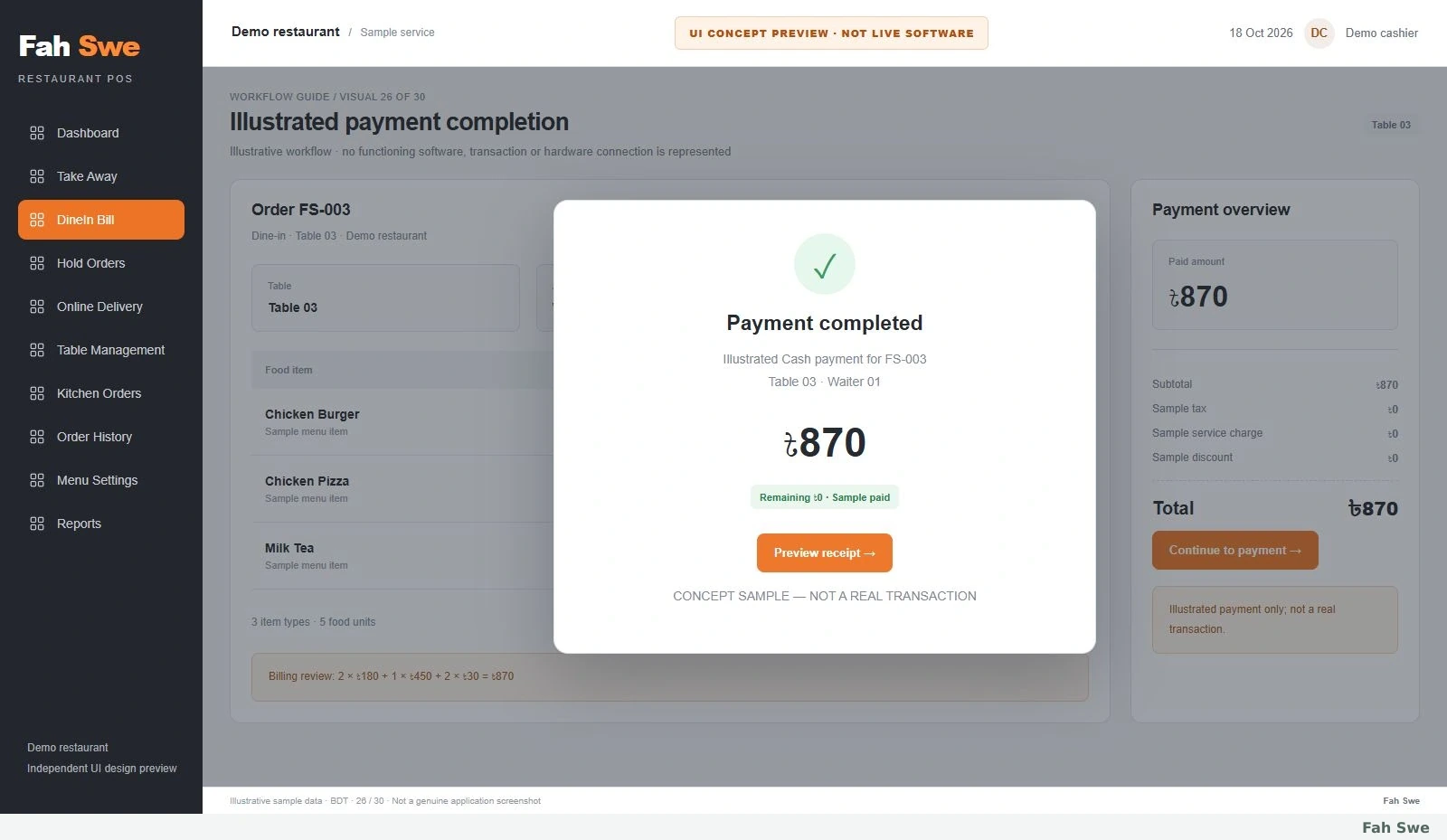
A green sample confirmation shows Cash payment of ৳870 against FS-003, with ৳0 remaining. It is an illustration, not evidence of a real transaction.
How to use this screen
Read the Concept Preview notice.
Match the payment with FS-003 and Table 03.
Continue to the customer receipt preview.
Business benefit
Shows the intended transition from unpaid bill to sample paid status.
27
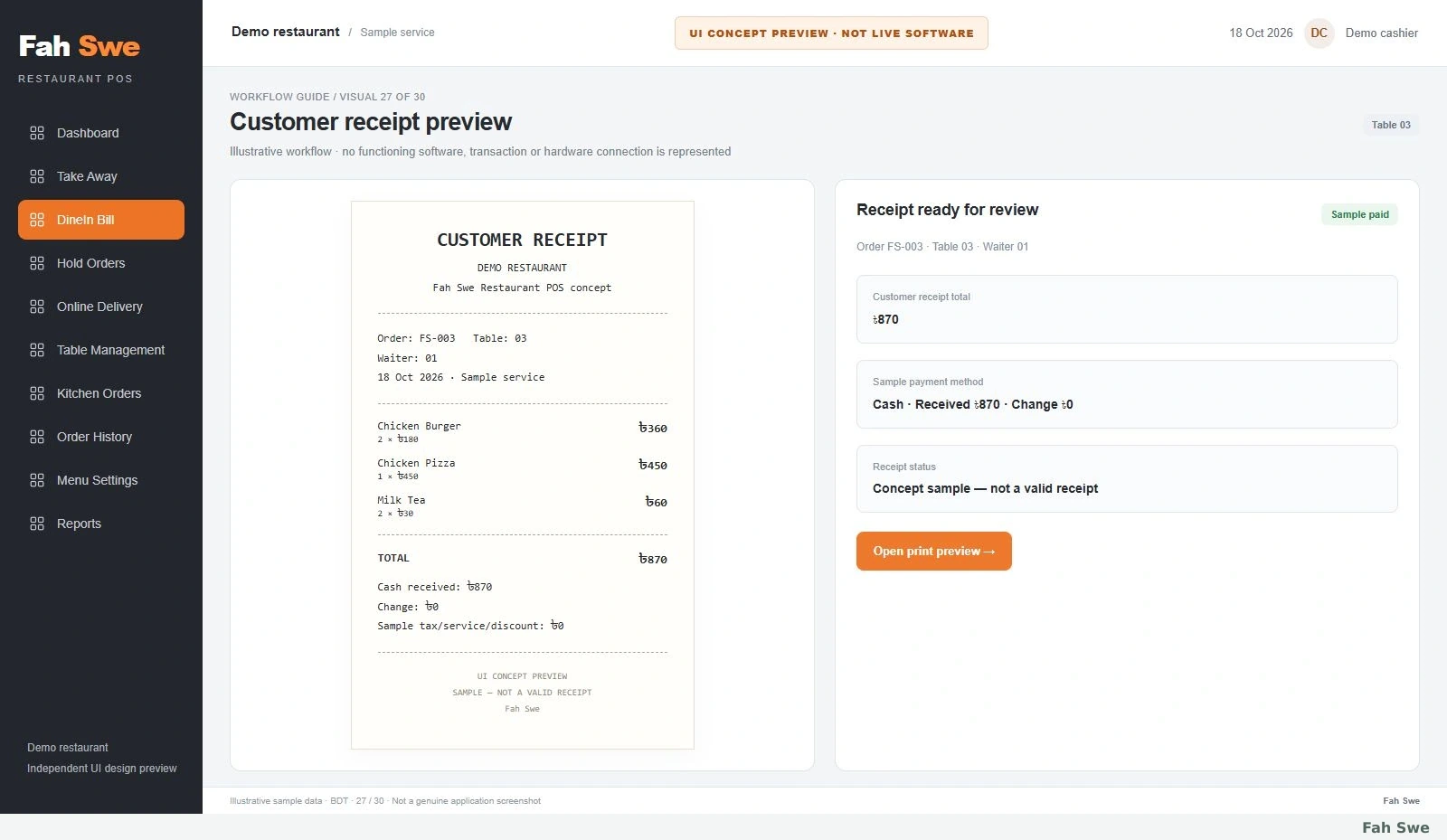
27. Customer receipt preview — Concept Preview
The receipt concept contains the same three items, ৳870 total, Cash payment and Waiter 01. It is marked SAMPLE — NOT A VALID RECEIPT and is separate from the kitchen ticket.
How to use this screen
Review the sample receipt label.
Match item rows and ৳870 paid amount.
Check the print-preview action.
Business benefit
Illustrates what customer-facing billing documentation could contain.
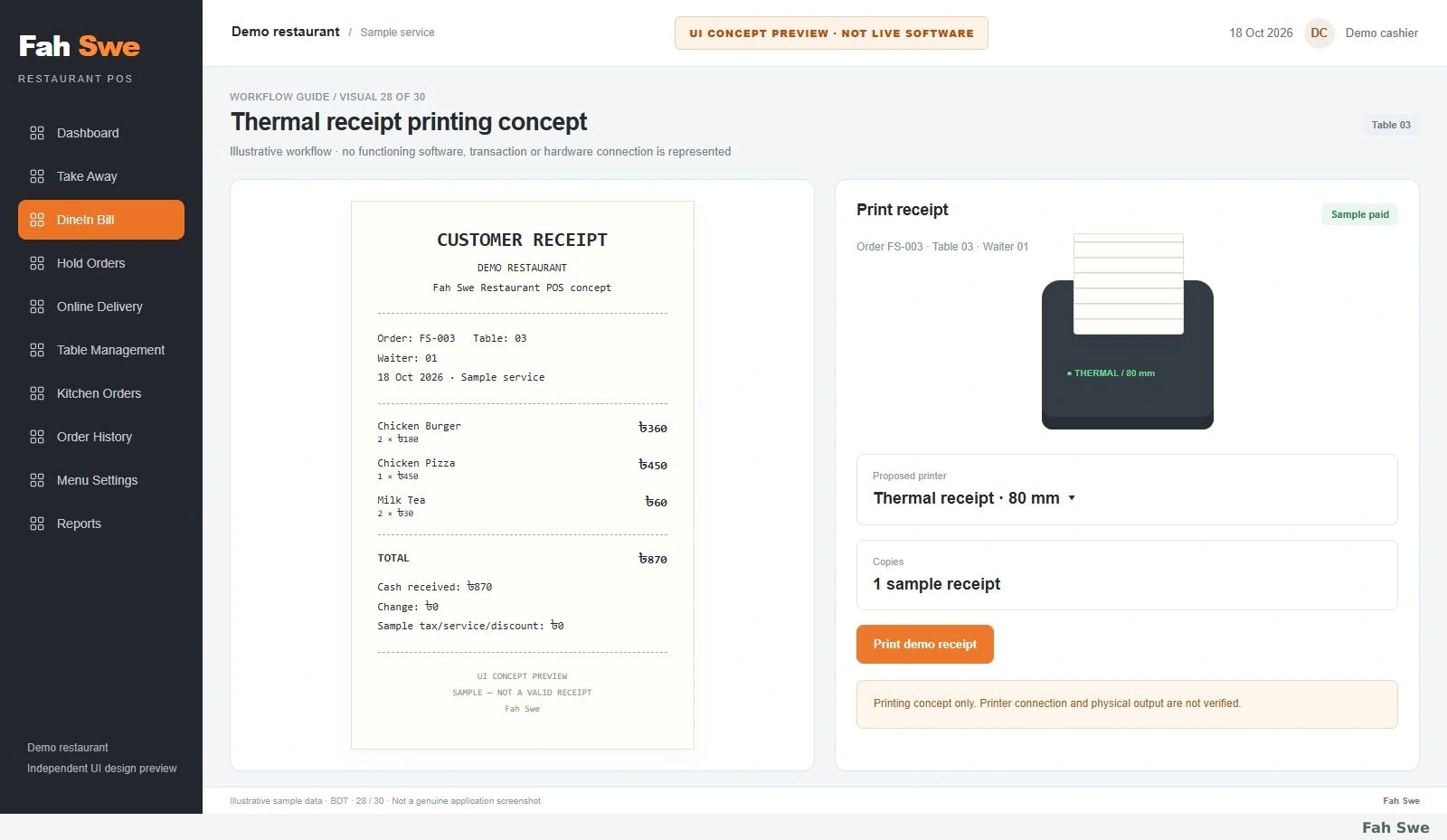
The full POS view includes an 80 mm receipt layout, printer illustration and Print demo receipt control. No connected printer or physical printing is verified.
How to use this screen
Review the complete sample receipt.
Inspect the proposed 80 mm printer setting.
Notice this is a printing concept only.
Business benefit
Shows a possible receipt-output workflow before hardware is confirmed.
29
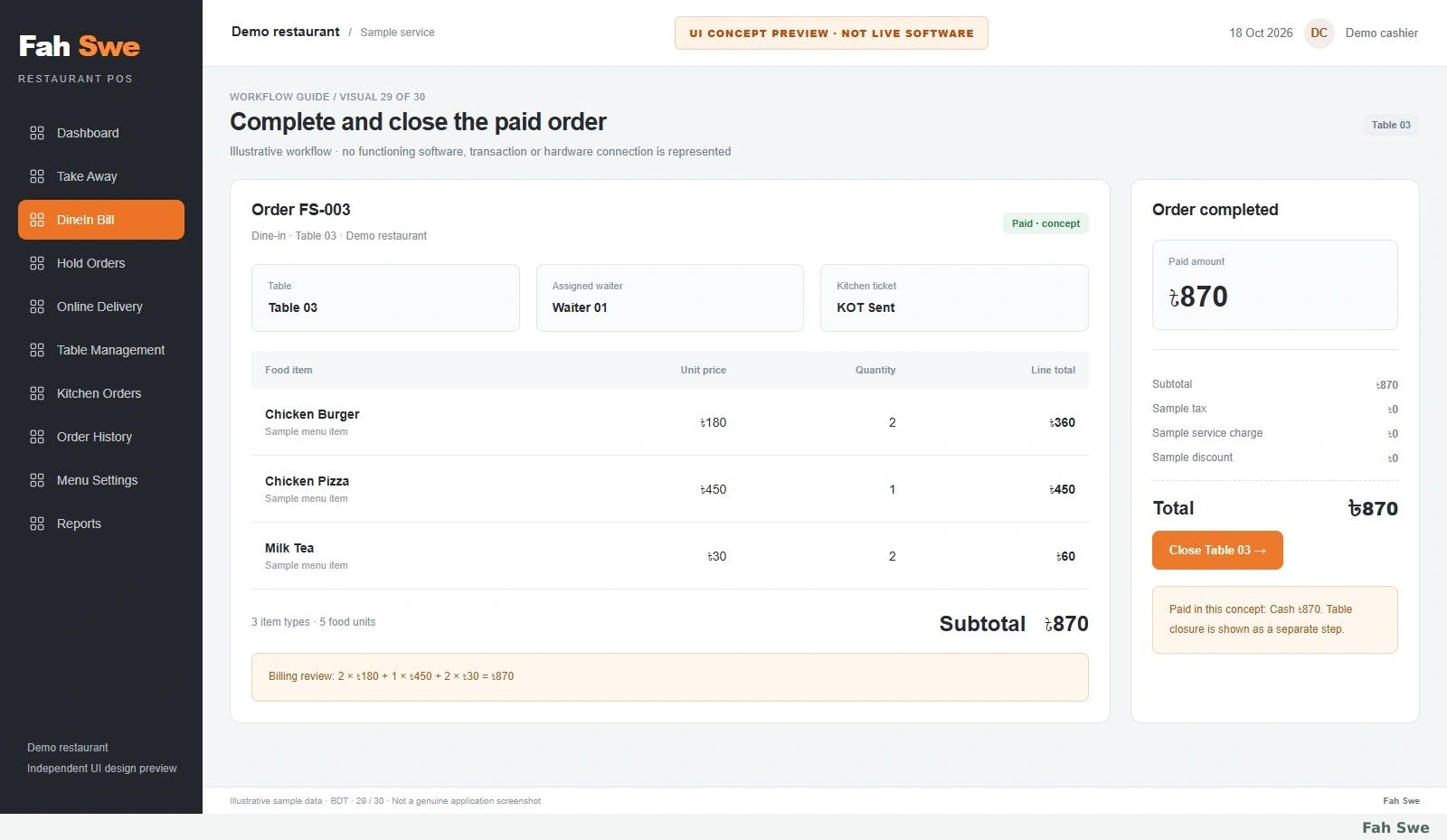
29. Complete and close the paid order — Concept Preview
The order details show Paid ৳870, Waiter 01 and KOT Sent. The highlighted Close Table 03 action is the final proposed step before returning that table to Free.
How to use this screen
Confirm that the sample bill is paid.
Review the completed order details.
Use Close Table 03 in the proposed workflow.
Business benefit
Separates payment completion from the explicit table-closing action.
30
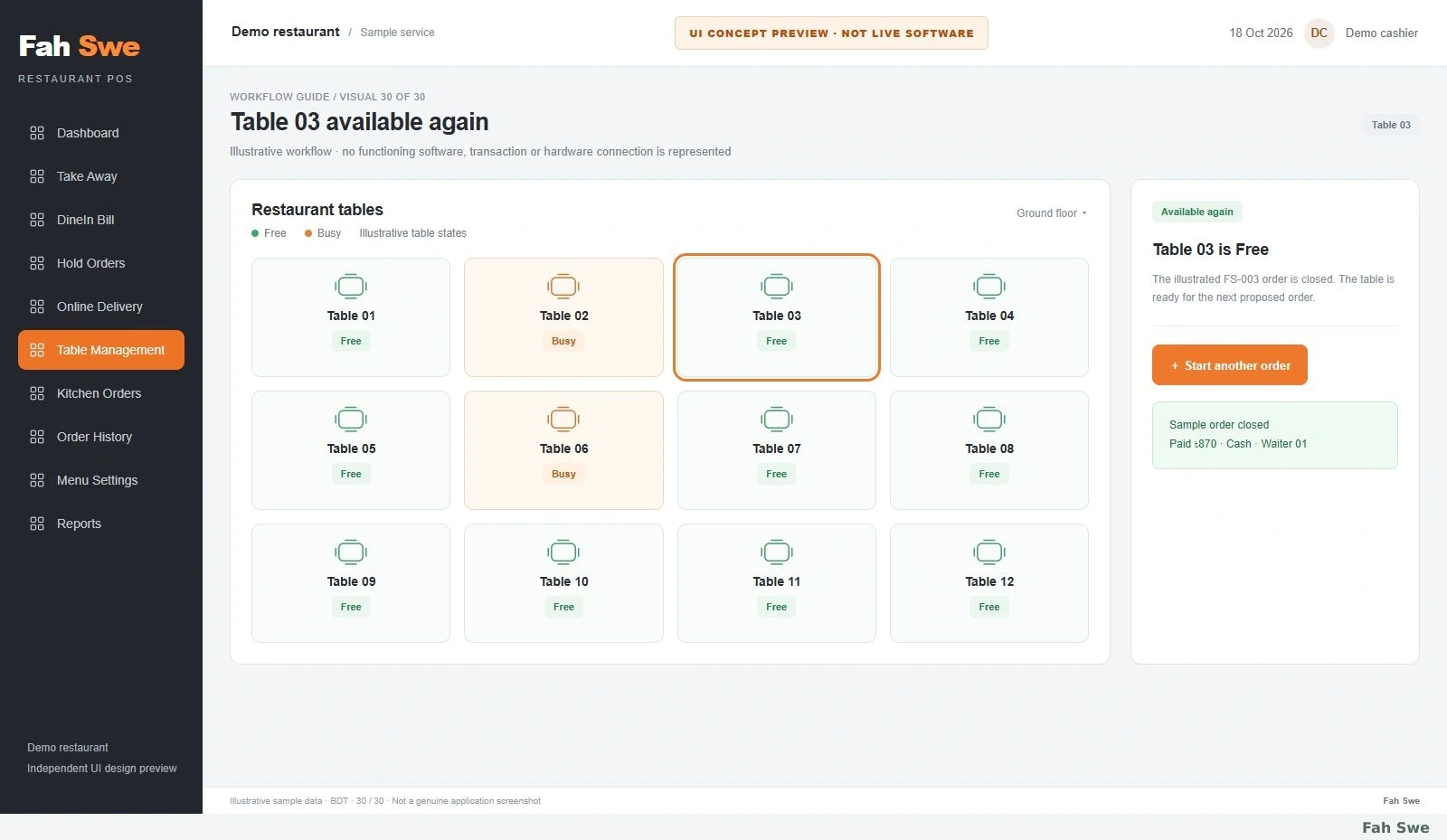
30. Table 03 available again — Concept Preview
The final dashboard shows Table 03 as Free after the sample order is closed. Table 02 and Table 06 stay Busy, matching the earlier table context.
How to use this screen
Read the sample order-closed message.
Confirm Table 03 is Free.
Compare the other tables with the earlier overview.
Business benefit
Completes the illustrated table-to-order-to-payment-to-availability cycle.
Technical & purchase information
Development scope & manual delivery
Restaurant POS development for the agreed dine-in workflow. After payment approval, one project starts In Progress in your client account. Fah Swe confirms requirements and schedule, updates progress, and manually reviews and hands over the completed work. The 30 labeled concept previews explain the intended interface; integrations and additional scope must be agreed before development.
Questions before you buy
Are the pictures genuine screenshots of finished software?
No. All 30 are labeled UI concept previews showing the proposed restaurant workflow. This is a development order. Fah Swe builds the agreed scope as a project and handles final delivery manually.
What is the price and when does the project start?
The one-time project price is $400 USD. After payment approval, your order creates an In Progress project in your Fah Swe account. Confirm scope, requirements and delivery timing with the team. Additional work is agreed separately before it begins.
How do I follow progress and receive the completed work?
Open the project from your purchase history or Dashboard → Projects. Fah Swe updates its status and progress, communicates through the client workspace, and arranges the final review and handover manually.